Smart Resize
Manual banner rebuilding is not a scalable workflow
Smart Resize is built for production teams that want a premium Photoshop-native way to create many sizes faster.
Why manual resizing balloons production time
If your team rebuilds every size from scratch, most of the hours go to repetitive tasks rather than layout decisions. The work piles up because:
- Each platform requests multiple aspect ratios, often in specific pixel dimensions.
- Key visuals need different focal crops to read at small sizes.
- Copy lengths vary (headlines, CTAs, legal), demanding layout adjustments per ratio.
- File naming, compression, and format rules change by destination.
A good resizing system separates one-time art direction from repeatable production. The goal isn’t to surrender control; it’s to set rules once, then apply them consistently.
The sourced specs
This section summarizes common, platform-referenced image asset dimensions and ratios so your PSDs target practical anchors. Always confirm the current requirements in the platform’s help center before delivery.
From Google Ads Help (image assets and responsive display guidelines):
- Square image assets: 1:1, commonly provided at 1200×1200.
- Landscape image assets: approximately 1.91:1, commonly 1200×628.
- Portrait image assets: approximately 4:5, commonly 960×1200.
- Additional ratios used in video and some placements include 16:9 (1920×1080, 1280×720) and 9:16 (1080×1920) for vertical environments.
- Responsive Display Ads and Performance Max accept multiple image assets and may generate additional formats or enhancements automatically.
These values reflect what the Google Ads Help pages list as accepted or commonly used sizes and ratios for image-heavy ad formats. Treat 1:1, 1.91:1, and 4:5 as core anchors. Provide at least those three ratio families for brand-controlled outcomes without leaning on platform auto-crops.
The workflow interpretation
Specs dictate minimums; production dictates craft. Translating the above into a working system:
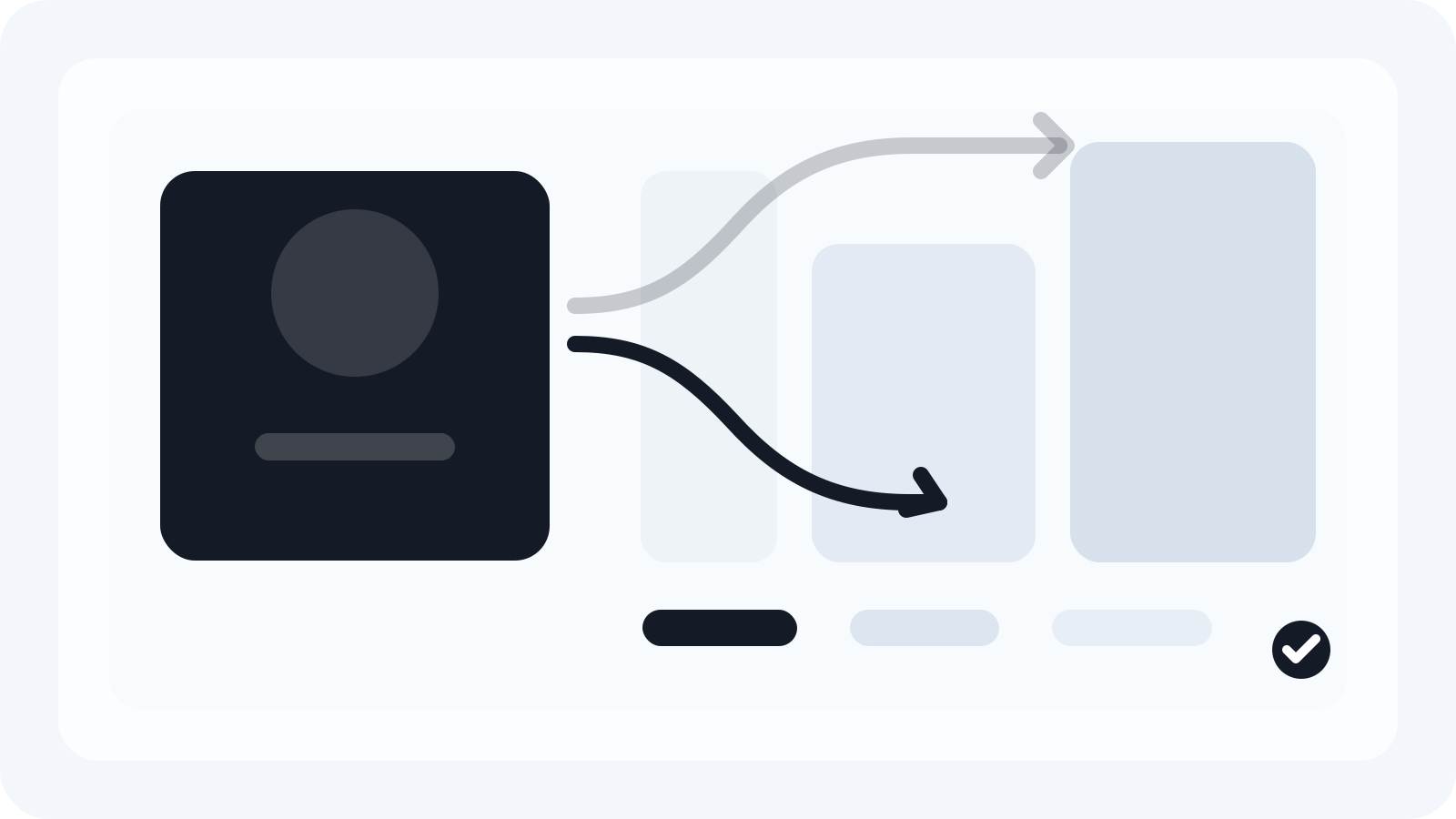
- Anchor ratios: Build layout systems for 1:1, 1.91:1, and 4:5. Add 16:9 and 9:16 if video or vertical surfaces are in scope.
- Focal consistency: Decide where the key visual should sit for each ratio—e.g., left-heavy product for 1.91:1, centered for 1:1, top-weighted for 4:5 where copy stacks below.
- Safe areas: Establish internal margins for headlines, logos, and CTAs that survive platform UI overlays and responsive crops.
- Typographic scaling: Define a type ramp per ratio family (e.g., headline size/leading rules for square vs. landscape) so you’re not tuning one size at a time.
- Copy variability: Plan for a long and short headline. Use layer visibility rules to switch variants without rebuilding.
- Export envelope: Pre-decide naming, format, and compression per destination to eliminate post-export handling.
This is the “design once, adapt predictably” mindset: art direct a small set of ratio masters, then scale within each family to specific pixel sizes with consistent placement and safe margins.
A Photoshop-native pattern that cuts manual work
You can achieve meaningful time savings using only Photoshop fundamentals:
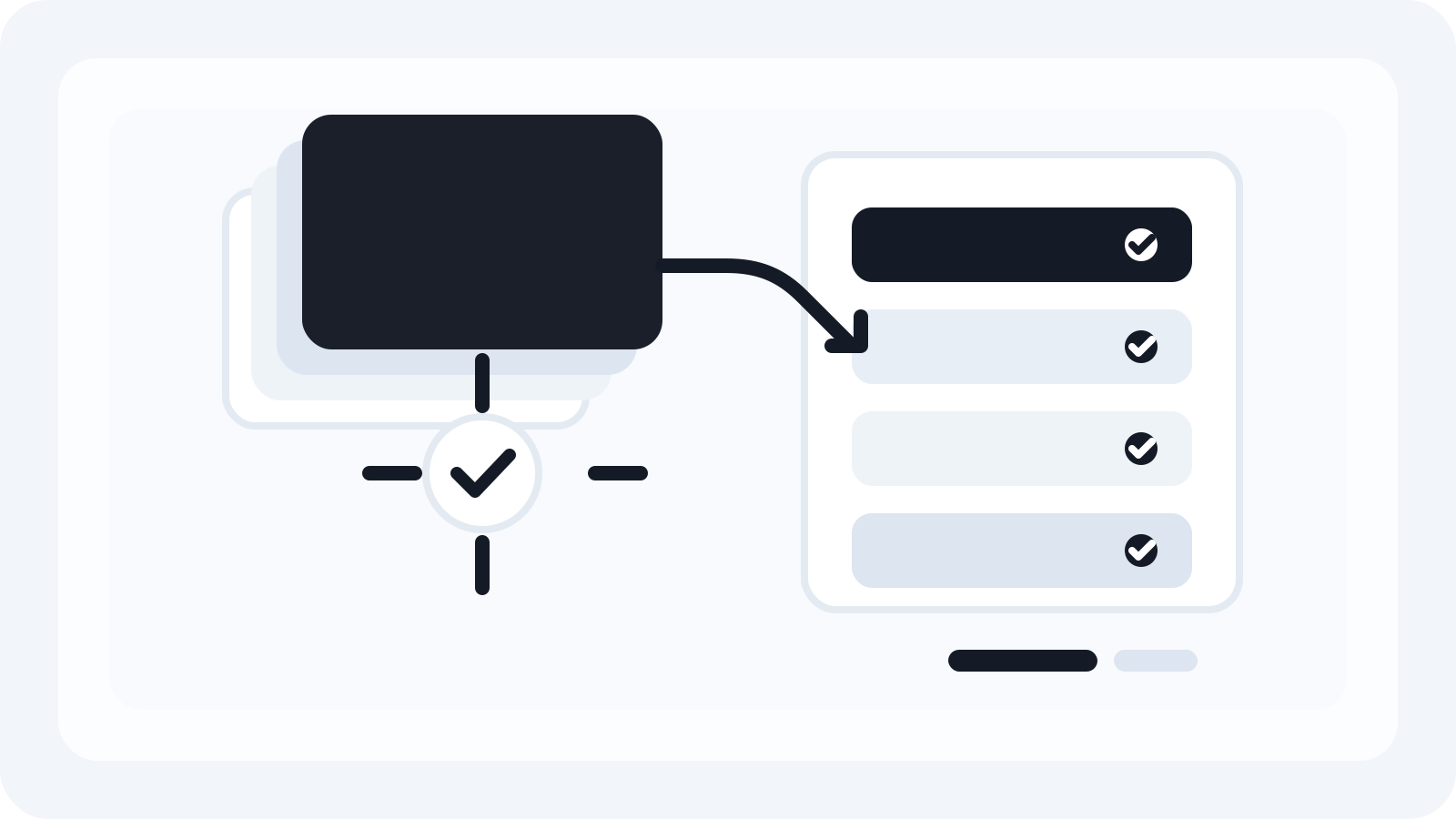
- Key visual as an embedded Smart Object
- Place the master artwork (photography, 3D render, illustration) as an embedded Smart Object. This preserves the source and enables non-destructive scale/position per size.
- Use “Replace Contents” on the Smart Object to swap the key visual across an entire set without re-cropping each size.
- Artboards per ratio family
- Create artboards for 1:1, 1.91:1, 4:5, and any other anchors you support.
- Within each artboard, set vector shape layers as safe-area guides (e.g., 32–48 px margins scaled relative to output size). Keep them non-exporting.
- Layer structure that mirrors your brand system
- Group layers by function: Brand, Headline, Subhead, CTA, Legal, Key Visual, Background.
- For each group, define transforms that are legal per ratio (e.g., scale headline 90–110% in 1:1; in 1.91:1 allow 80–100% with additional tracking). Store these as comments on layer comps or a readme layer.
- Layer comps per size
- For each exact pixel size, create a layer comp that captures visibility, position, and layer styles. Use consistent naming like r1x1_1200x1200_A, r191x1_1200x628_A.
- Maintain a short and long copy variant with suffixes (_S, _L) to switch quickly.
- Batch export without hand-touching each file
- Use File > Export > Layer Comps to Files to render PNG/JPG sets from your comps.
- For heavier sets, organize comps into batches (e.g., squares first) to keep QA manageable.
- Reuse at the campaign level
- Duplicate the PSD as a campaign template. Use Smart Object “Replace Contents” to drop in the new key visual and update copy layers. Most sizes update immediately; adjust only the exceptions.
This setup doesn’t remove design judgment; it reduces repeat clicks by capturing those decisions in a reusable PSD.
Where Smart Resize fits naturally
Once your PSD respects ratios, safe areas, and group structure, Smart Resize removes the most repetitive steps: entering dozens of target sizes, tinkering with per-size crops, and exporting named variants.
- It is a Photoshop-native plugin designed for production teams. You keep your PSD, your Smart Object key visual, and your text layers.
- You load the key visual once, enter or paste the size list, map focal logic and layer behaviors, and generate the assets. The plugin handles consistent naming and output settings.
- Designers remain in control of focal points and typography; the plugin handles the scale-and-export grind that makes manual workflows slow and error-prone.
If you want to review the mechanics before adopting it, the documentation covers PSD structure, how to enter sizes, and output settings:
- See the PSD structure in the PSD setup guide.
- Review onboarding in the Smart Resize quick start.
- Enter a size list with Enter sizes and export using Generate assets and Output settings.
For procurement details, compare the cost and workflow tradeoffs on the Smart Resize pricing page, or skip straight to the Smart Resize download.
Practical build rules that scale
Make your PSD forgiving so it survives across sizes and campaigns:
- Focal masks on the key visual: Use a clipped vector mask that can shift left/right/up/down in each ratio master. This preserves composition while changing canvas.
- Text lockup as a group: Keep headline, subhead, and CTA grouped with a bounding box guide. In square, center-left; in landscape, left; in portrait, lower third. Store offsets in layer comps.
- Legal and logos as anchored elements: Pin to corners with consistent margins that scale per output size. Use pixel-snapping to avoid blurring in small banners.
- Color and effects as adjustment layers: Keep grading, tints, and glows outside the key visual Smart Object so replacements inherit the look instantly.
- Naming discipline: Prefix comps and layers by ratio so sorting mirrors your export order.
This structure helps regardless of tooling. If you later add automation, it simply has a clean map to follow.
Quality control for large resize sets
A short QA pass prevents rework:
- Edge safety: Verify no type or logos sit within platform UI hot zones. Your safe-area guides should make this obvious.
- Legibility at minimums: Open the smallest size at 100% zoom. Headlines and logos should read on standard laptops and phones without squinting.
- Compression sanity: For photographic banners, compare JPG at 70–85% against PNG-24; pick the smaller file that preserves brand detail.
- Consistent kerning/tracking: Small sizes might need +10 to +20 tracking to hold clarity. Apply it at the ratio master so all children inherit.
- File naming and handoff: Confirm naming matches ad server conventions (campaign_channel_ratio_dimension_variant.ext). Avoid manual renames later.
When to stay manual, when to automate
Stay manual when:
- You’re testing a new layout language and need exploratory iterations.
- The campaign has only a handful of sizes.
Automate when:
- You have three or more ratio families and 10+ final sizes.
- There are recurring campaigns with quarterly key-visual swaps.
- Compliance text or product labels change often.
Smart Resize sits in the automate bucket. It doesn’t invent a layout; it enforces one you already approved across many outputs.
A realistic time-savings model
Consider a 30-size set across square, landscape, and portrait:
- Manual baseline: 4–6 minutes per size to position, check margins, export, and name files = 120–180 minutes, plus QA.
- With a reusable PSD only: Initial setup takes longer once, but subsequent campaigns often land around 2–3 minutes per size (60–90 minutes) as most positions are pre-decided.
- With a resizing workflow tool: Enter sizes once, reuse focal logic and naming conventions, then generate. The hands-on time frequently drops to a single working session (e.g., 30–45 minutes) including a focused QA pass.
Actuals vary by art complexity and review loops, but the direction is consistent: centralize decisions, then let the workflow do repetition.
Implementation checklist
- Define the campaign’s anchor ratios and smallest required sizes.
- Build a master PSD with embedded Smart Object key visual(s), artboards, safe-area guides, and grouped type.
- Create layer comps per required size and store type scaling rules per ratio family.
- Establish export naming, format, and compression standards.
- If volume warrants, integrate Smart Resize so size entry, focal mapping, and asset generation are repeatable. Start with the Smart Resize quick start and validate outputs against your internal QA list.
The bottom line
Reducing manual resize work is about structure, not shortcuts. A solid Photoshop pattern built on Smart Objects, artboards, and layer comps gets you most of the way there. When your set size grows and deadlines tighten, a Photoshop-native workflow tool like Smart Resize removes the repetitive entry-and-export burden while keeping designers in control of composition and type. If you need pricing for approval, see Smart Resize pricing; if you want to evaluate the workflow, start with the docs and a single campaign PSD.
Smart Resize
Need the workflow before the pitch?
Use the Smart Resize docs to review PSD setup, layer mapping, size entry, and export configuration.
FAQ
Can I reduce manual resizing using only native Photoshop features?
Yes. A reliable pattern uses embedded Smart Objects for key visuals, artboards for core aspect ratios, layer comps per size, reusable guides for safe areas, and Export > Layer Comps to Files for batches. This handles consistent crops and exports, but you’ll still spend time entering exact sizes, duplicating variations, and managing file naming/outputs. Tools like Smart Resize compress those administrative steps by letting you enter a size list once, map layers and focal regions, and generate the set with consistent naming and outputs.
What’s the difference between automating with actions versus a resizing workflow tool?
Actions are brittle for layout adaptation; a recorded transform that works for 1200×628 might fail for 300×250. A workflow tool models aspect ratios and sizes explicitly, applies guarded scaling rules to focal Smart Objects and text blocks, and outputs named variants with the right format and compression. Use actions for housekeeping (e.g., profile conversion, layer cleanup) and a purpose-built workflow for size adaptation across many ratios.
Do responsive ads make manual resizing unnecessary?
Responsive formats can auto-crop and re-compose, but brand assets with tight typographic lockups, legal lines, or product shots often need designer-set focal points and safe margins. Many teams provide platform-friendly assets (square, landscape, portrait) to control outcomes. The approach below reduces the effort to create those controlled variants.
Sources and verification
Create embedded Smart Objects
https://helpx.adobe.com/photoshop/using/create-smart-objects.html
The HubSpot Customer Platform
https://blog.hubspot.com/marketing/banner-ad-size
Google Ads specs: ad formats, sizes, and best practices
https://support.google.com/google-ads/answer/13676244?hl=en-EN
About image assets for Performance Max campaigns
https://support.google.com/google-ads/answer/14530211?hl=en
About advanced format options for responsive display ads
https://support.google.com/google-ads/answer/9848687?hl=en