Smart Resize
Manual banner rebuilding is not a scalable workflow
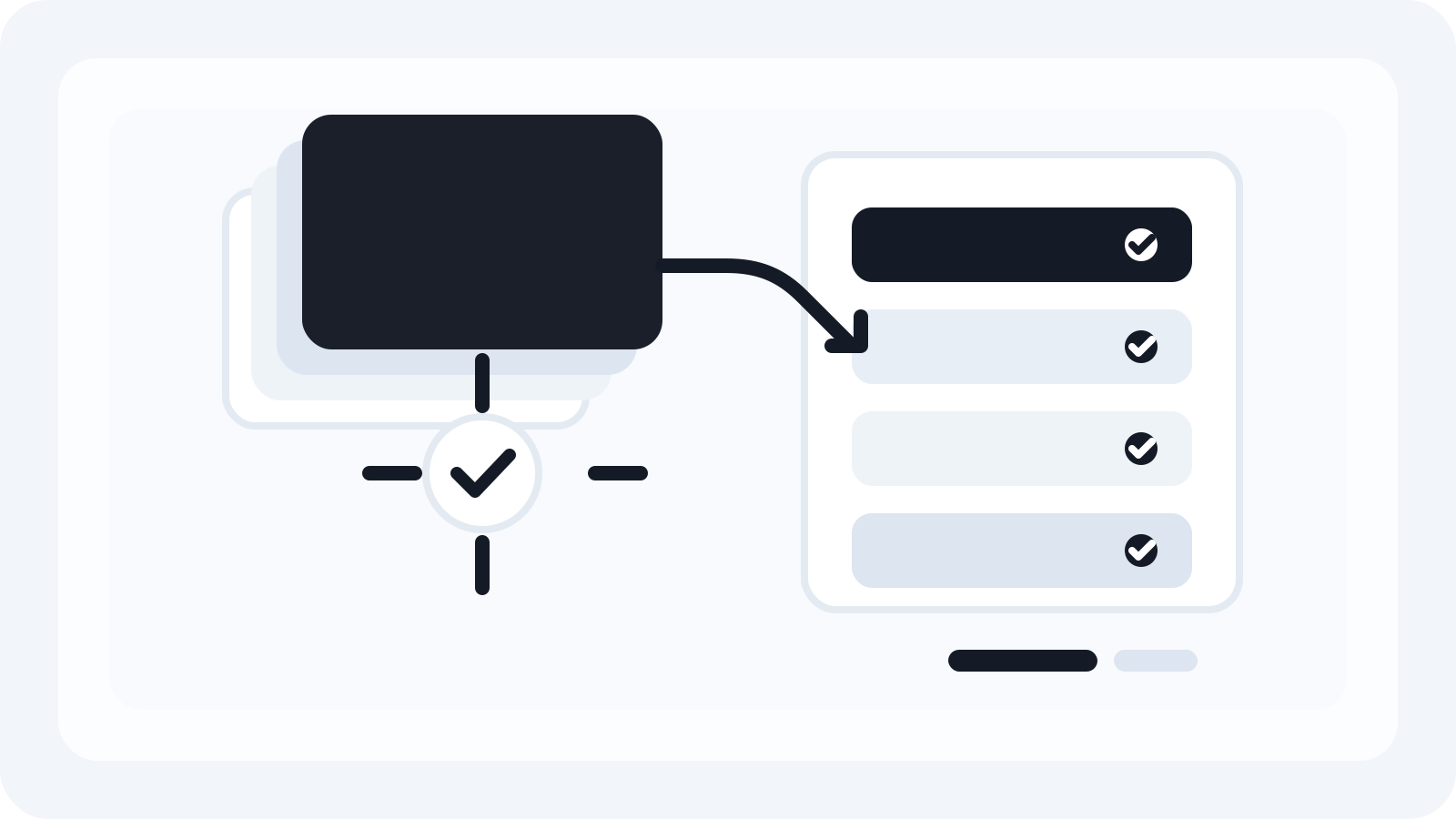
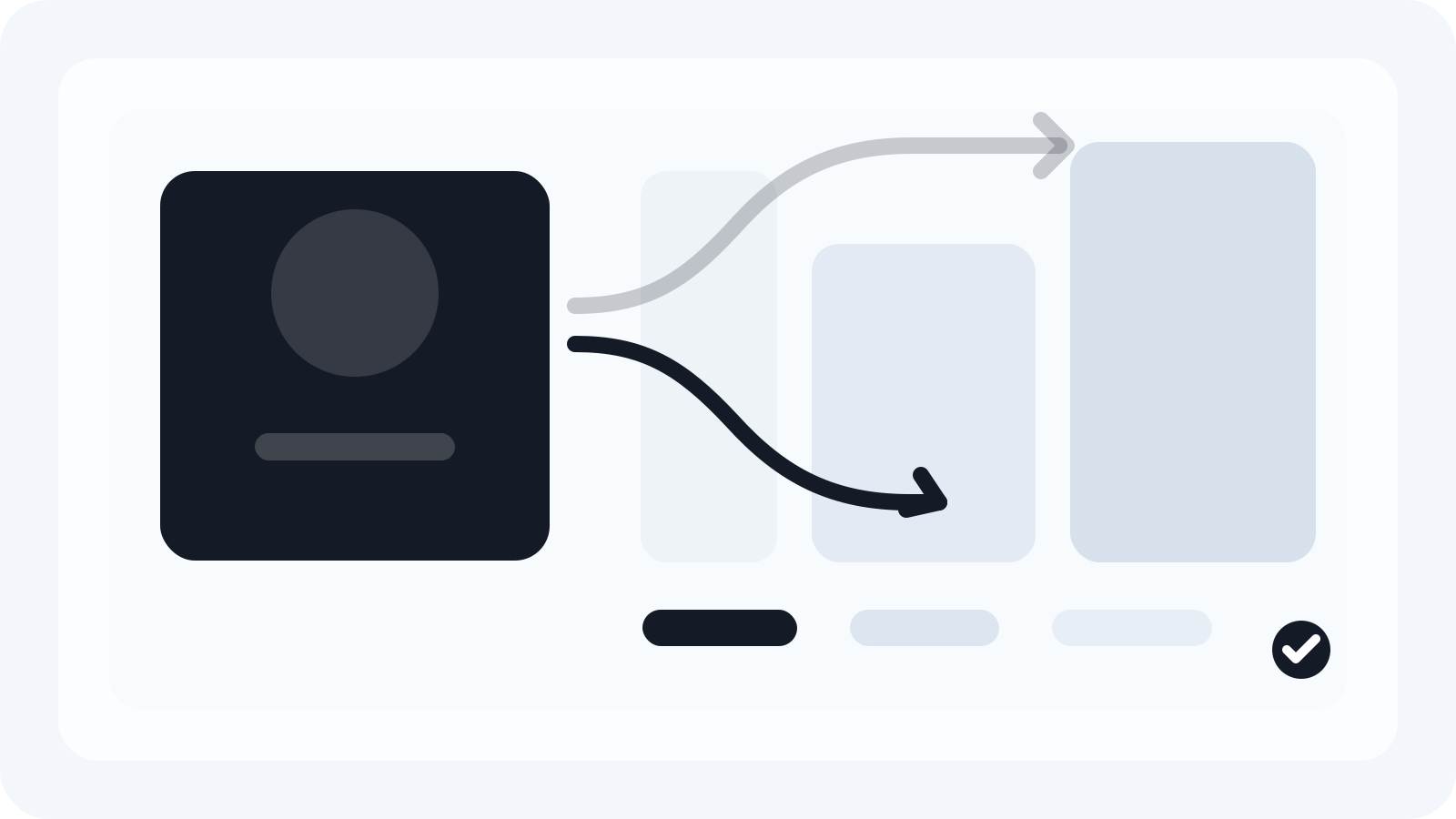
Smart Resize is built for production teams that want a premium Photoshop-native way to create many sizes faster.
Agencies don’t need another generic app; they need repeatable control. The right banner resizing setup protects design intent, produces consistent files for media platforms, and absorbs last‑minute client feedback without unraveling the PSD. This page compares viable approaches and outlines a Photoshop‑native workflow many production teams standardize on.
What agencies actually need from banner resizing software
Across brand, retail, and performance work, production teams tend to converge on a short list of non‑negotiables:
- Accuracy: typography, logo lockups, and key visual positioning must survive scaling without distortion.
- Non‑destructive edits: the ability to change a master visual, then propagate updates to all sizes.
- Platform compliance: predictable exports for display networks and social placements.
- Team handoff: files named, versioned, and color‑managed for DAM and ad ops.
- Speed without guesswork: automation that still allows quick manual overrides on edge cases.
Common approaches—and where each fits
There isn’t one universal tool. Teams often mix methods depending on the brief and timeline:
- Manual Photoshop rebuilds: absolute control and fidelity, but time‑intensive and difficult to scale for dozens of sizes per market.
- Photoshop actions, artboards, and Export As: helpful for repetitive steps, yet fragile when layouts vary by aspect ratio or when type must reflow differently at small sizes.
- Figma components and Auto Layout: excellent for social organic systems and collaboration; less aligned with deep retouching, color‑critical imagery, and advanced Smart Object pipelines common in brand campaigns.
- Online ad builders (e.g., HTML5 template platforms): strong for animation and dynamic feeds; typically lock you into their templating and hosting. Static, color‑managed PSD‑led workflows may require back‑and‑forth or re‑artworking.
- Scripting (UXP/ExtendScript) or custom pipelines: powerful but require engineering time, maintenance, and training.
Many agencies default to Photoshop for master KVs because it preserves the retouching stack, ICC profiles, and Smart Objects essential to brand fidelity. The gap to close is batch resizing without losing control.
Why a Photoshop‑native workflow remains standard
Photoshop’s Smart Objects preserve a layer’s original data and allow non‑destructive transforms and filters. According to Adobe’s documentation, Smart Objects can be embedded or linked so a single source can update across instances—exactly the behavior production designers want when they swap a product shot or update a logo across many sizes. Keeping everything Photoshop‑native also means:
- Color management remains predictable (profiles, intent, proofing).
- Type stays live for late copy amends.
- Layer comps, guides, and masks travel with the file.
- Retouching and brand treatments are not re‑created in a second tool.
The missing piece is structured, repeatable resizing. That’s where a dedicated Photoshop plugin such as Smart Resize fits into the process—augmenting, not replacing, your PSD craft.
A practical PSD‑to‑batch workflow for campaign sizes
Below is a neutral, team‑friendly approach that works with or without a plugin; where a plugin helps is highlighted.
- Start from a canonical PSD
- Group logically: Background, KV, Logo/Lockup, Headline, Subcopy, CTA, Legal.
- Keep photography, logos, and product layers as Smart Objects so they scale cleanly and remain replaceable.
- Define safe areas and minimum logo/CTA sizes.
- Map element behavior across aspect ratios
- Decide which elements anchor to which edges (e.g., logo top‑left, CTA bottom‑right).
- Define rules for type scaling vs. reflow.
- Create fallbacks for extreme small sizes (e.g., logo‑only variant).
- Generate a governed size list
- Pull the exact placements for the media plan (e.g., Google Display, Meta placements, LinkedIn, programmatic IO). Treat each family as a batch so copy and hierarchy stay coherent.
- Batch‑produce, then spot‑fix exceptions
- Run a first pass to produce all sizes.
- Identify outliers where copy needs a shorter line or the subject needs nudging.
- Iterate on the canonical PSD when possible so improvements roll forward.
Smart Resize streamlines steps 2–4 inside Photoshop. You define how layers map to sizes, then batch‑generate static units while preserving type, Smart Objects, and color settings. If you want to review the exact steps, see the Smart Resize quick start and the PSD setup guide.
Handling platform specs without guesswork
The challenge isn’t only geometry; it’s compliance. A few anchor facts that help guide your size list and export settings:
- Google Ads responsive display images: As of 2026, Google’s Help Center lists common image asset sizes including 1200×628 (landscape) and 1200×1200 (square). Minimums such as 600×314 (landscape) and 200×200 (square) are also documented, along with logo assets like 1200×300 (landscape) and 144×144 (square minimum). Always confirm the current spec before final delivery.
- Social platforms: Industry guides from Hootsuite and Buffer (2026) continue to emphasize three dominant aspect families—square (commonly 1:1, e.g., 1080×1080), vertical (9:16, e.g., 1080×1920 for stories/reels/shorts), and landscape (roughly 1.91:1, often 1200×628 for link ads). YouTube thumbnails commonly use 1280×720. Platforms revise guidance periodically; check the latest doc per channel.
Production tip: maintain a master CSV of the placements you actually buy, grouped by channel family. Use it as the single source of truth for each campaign.
In Smart Resize, sizes can be entered and reused across jobs. When you’re ready to try it, the panel flow for sizes and export rules is covered in Enter sizes and Output settings.
Quality control that scales with volume
Teams that hit deadlines reliably invest in lightweight, repeatable QA:
- Geometry and bleed: verify that masked imagery respects safe areas at extreme aspect ratios.
- Typography: check minimum point sizes and line counts on the smallest units.
- Lockup integrity: ensure relative spacing between logo, CTA, and legal holds across sizes.
- File naming: match the ad ops or DAM convention exactly (campaign_channel_locale_size_variant.ext).
- Color and compression: review profiles and compression artifacts on gradients, skin tones, and type edges.
Smart Resize supports deterministic naming templates and batch exports so you can embed these conventions. For a full pass from PSD to export, see Generate assets.
Cost, staffing, and the business case
Production hours often dwarf license costs. A Photoshop‑native tool that removes rebuild steps can reclaim hours on each campaign, particularly across localization and brand refresh waves. The financial case usually shows up in:
- Fewer manual rebuilds per size (minutes become seconds for the majority of units).
- Reduced rework from late copy or logo updates (update once, regenerate many).
- Lower onboarding overhead (keep designers in Photoshop).
Smart Resize is a one‑time license designed for production teams. If you want to see how it compares with your current method, review Smart Resize pricing and run a timed pilot on a known campaign.
How Smart Resize fits without locking you in
- Photoshop‑native: stays inside your PSD workflow—no migration of assets or color settings.
- Rules‑based resizing: define anchors and safe areas once, apply them to many sizes.
- Smart Object‑friendly: placed photography and logos remain replaceable and non‑destructive.
- Team‑ready exports: naming templates, format presets (PNG/JPG/WEBP), and predictable folder structures.
- Keep exceptions manual: you can still nudge individual sizes post‑generation; the tool accelerates the 80–90% that follow consistent rules.
If you need to hand off the workflow to another producer or freelancer before a pitch, the documentation outlines each step end‑to‑end in the Smart Resize quick start.
Implementation playbook: one‑week pilot
- Day 1: Choose a key visual with real copy and legal. Normalize the PSD structure and convert logos/products to Smart Objects.
- Day 2: Build a size list for two channels (e.g., Google Display + Instagram Stories). Mark any non‑negotiable placements from media.
- Day 3: Define anchors, safe areas, and copy rules. Run a first batch.
- Day 4: QA against a short checklist; note outliers and update the canonical PSD.
- Day 5: Re‑run the batch and hand files to ad ops for a dry run. Compare timings and defect rates with your current approach.
If the pilot hits your targets, roll the pattern into a template repository alongside a CSV of approved sizes per client.
Buying checklist (use this even if you don’t switch tools yet)
- Can our designers stay in Photoshop for retouching, type, and color?
- Are Smart Objects preserved so a master logo/product swap ripples across sizes?
- Can we encode anchors and safe areas instead of eyeballing every unit?
- Do exports match our ad ops naming and format needs without extra scripts?
- Can new team members follow documented steps within a day?
If the answer is “yes” across these points, your banner resizing setup will support both speed and brand control. If you want a Photoshop‑native option that meets these criteria, you can review Smart Resize pricing or start a hands‑on evaluation from the Smart Resize download.
Smart Resize
Need the workflow before the pitch?
Use the Smart Resize docs to review PSD setup, layer mapping, size entry, and export configuration.
FAQ
How is a Photoshop-native plugin different from online ad builders?
Online builders are strong for HTML5 templates and media hosting, but they usually operate inside their ecosystem. Agencies that work from retouched PSD/PSB key visuals and need pixel-precise static exports often prefer staying in Photoshop to keep color management, Smart Objects, and layer-level control. A Photoshop-native plugin accelerates repetitive resizing while preserving those controls and handing off standard files (PNG/JPG/WEBP/PSD) into your existing DAM or ad platforms.
Can the workflow handle hundreds of sizes without breaking typography or logos?
Yes—if you set consistent rules up front. In Photoshop, keep type live, use paragraph styles, and anchor typographic groups to known edges or safe areas. Place logos and photography as Smart Objects so transforms remain non-destructive. Then batch across a governed size list and export with deterministic naming. This approach minimizes reflows, keeps brand geometry intact, and reduces manual patch-ups to a small percentage of outliers.
What about HTML5 banners?
If you need animated HTML5, consider adding a builder dedicated to motion. Many agencies still produce static or lightweight motion as image sequences for programmatic placements and social. A Photoshop-native workflow remains valuable for key visual preparation, static variants, fallbacks, and quick-approval comps—even when a subset of units later move into motion tools.
How do we pilot this process on a live project without risking deadlines?
Run a one-week pilot. Day 1: choose a recently approved key visual and define a canonical layer structure. Day 2: collect the size list for one channel family (e.g., Google Display + Instagram stories). Day 3: map elements, set safe areas, and generate a first batch. Day 4: document exceptions and create a short QA checklist. Day 5: compare timings with your current method and decide where to standardize or keep exceptions manual.
Sources and verification
Create embedded Smart Objects
https://helpx.adobe.com/photoshop/using/create-smart-objects.html
Social media image sizes for all networks [May 2026]
https://blog.hootsuite.com/social-media-image-sizes-guide/
Social Media Image Sizes in 2026: Guide for 9 Major Networks
https://buffer.com/library/social-media-image-sizes/
Google Ads specs: ad formats, sizes, and best practices
https://support.google.com/google-ads/answer/13676244?hl=en-EN
The HubSpot Customer Platform
https://blog.hubspot.com/marketing/banner-ad-size