Smart Resize
Manual banner rebuilding is not a scalable workflow
Smart Resize is built for production teams that want a premium Photoshop-native way to create many sizes faster.
The problem with flattened automation
Many “auto-resize” tools promise speed but produce flattened exports. That looks fine until the first revision round: update a price, localize copy, or tweak a mask and you discover there’s no editable PSD. The team duplicates effort, re-keys text, or rebuilds files from scratch—exactly the cost automation was supposed to remove.
Production realities make this risk bigger, not smaller:
- Late-breaking changes are normal—legal lines, CTAs, promo dates, and product shots shift.
- QA requires pixel-level adjustments after stakeholder review.
- Markets need copy variants that can’t be inferred by an algorithm.
If automation discards structure (type layers, masks, Smart Objects, color fills, adjustment layers), it transfers time from layout to rework. Speed only counts if you can edit the output tomorrow.
Why editable PSD outputs still matter in campaign production
Layered deliverables are non-negotiable for professional teams because they:
- Keep type live for copy, language, and accessibility updates.
- Preserve Smart Objects for non-destructive scaling and replacements.
- Let masks, vector shapes, and adjustment layers carry brand fidelity across sizes.
- Enable consistent color management and export profiles.
- Survive handoffs between agencies, in‑house teams, and media partners.
Photoshop’s Smart Objects and layer system exist to preserve decisions—and to separate reusable structure from layout-specific art direction. Automation that respects that model gives you both speed and control.
Automate what’s predictable; reserve judgment for the rest
A practical division of labor:
- Automate
- Artboard creation for target sizes and aspect ratios.
- Placement and proportional scaling of key visuals via Smart Objects.
- Safe-area alignment and anchor rules for logos and CTAs.
- Visibility toggles for predefined copy variants (short/long).
- File naming, folder output, and export formats.
- Human review
- Crops for complex subject matter.
- Edge cases where copy density or brand hierarchy needs nuance.
- Market nuances, legal positioning, and visual balance.
This approach uses automation for consistency and volume, while designers make the calls that actually protect the brand.
Design a master PSD that is automation-ready
An automation-friendly master file does not need to be rigid. It needs to be explicit.
Build it like a system:
- Structure
- Group by function: Background, Imagery, Copy, Logo, CTA, Overlays.
- Use layer comps for critical states (e.g., hero vs. product emphasis) if your team prefers that convention.
- Name layers predictably: H1-long, H1-short, Body, Price, CTA, Logo, Legal. Predictable names are automatable.
- Type
- Keep headlines and body copy as live type layers. Define paragraph/character styles for predictable reflow.
- Maintain alternate line breaks for narrow formats using short variants, so automation doesn’t guess.
- Imagery
- Place hero/product art as Smart Objects. This preserves non-destructive scaling and high-DPI sources.
- Add subject-aware masks or protected crop zones for important content.
- Layout rules
- Define safe areas for logos and CTAs. Ratios shift; your safe zones shouldn’t.
- Use guides that reflect minimum padding and grid rhythm, not single-size coordinates.
- Brand assets
- Vector shapes for buttons and keylines are preferable to raster slices.
- Adjustment layers (e.g., color, contrast) should sit above imagery groups, not baked into pixels.
If your team wants a step-by-step visual checklist, see the PSD setup guide.
Practical size families to plan for (and what the specs imply)
Platform specifics change periodically, so confirm the latest requirements in your media plan. The following families remain widely used and map to predictable art-direction tradeoffs:
- Landscape banners (e.g., 728×90, 970×250, 320×100)
- Wide headline lockups, compact legal. Imagery often crops horizontally; keep the subject on a horizontal third.
- Medium rectangles (e.g., 300×250, 336×280)
- Balanced copy and product. Often a workhorse unit; design this format first as a baseline.
- Skyscrapers (e.g., 160×600, 300×600)
- Vertical emphasis; stack hierarchy cleanly (logo → hero → headline → CTA → legal). Short copy variants pay off here.
- Square/portrait social and responsive display images
- Common aspect ratios include 1:1 (square) and 4:5 (portrait), as well as ~1.91:1 (landscape) for responsive placements. Typical creative guidance: ensure the essential subject and copy sit within central safe zones and remain legible at small sizes.
Industry help docs (e.g., Google Ads Help) often cite these ratio classes and give recommended pixel dimensions. Treat those as constraints for export—not as a reason to flatten your creative. Your master should remain layered so the team can adapt quickly if specs or placements adjust.
Where Smart Resize fits in a Photoshop-native workflow
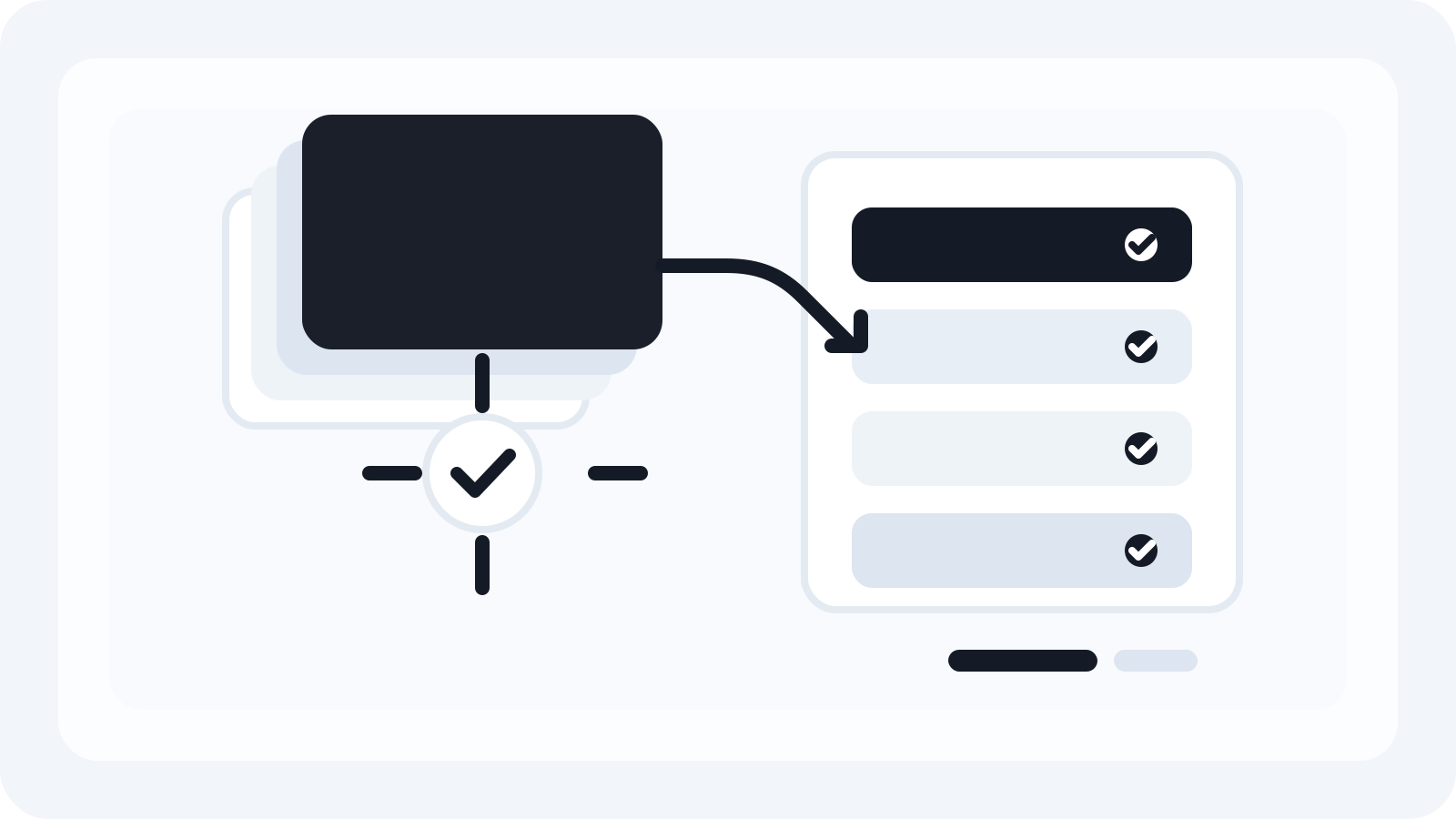
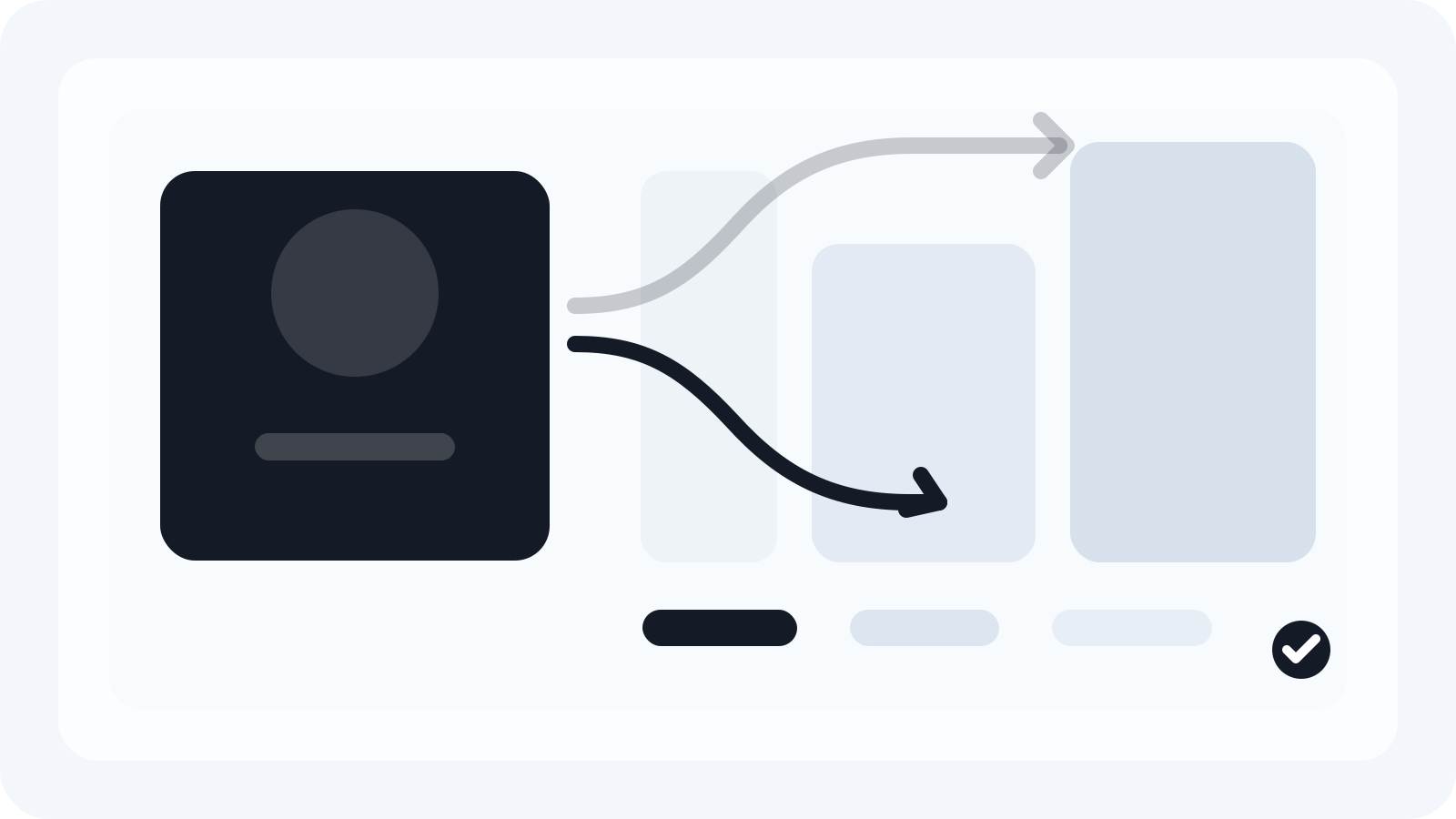
If your team wants automation without surrendering layered outputs, Smart Resize sits between your master PSD and the final export step:
- You prepare a single, well-structured master as above.
- You tell the plugin which sizes you need and how elements should behave across ratios.
- It generates one layered PSD per size with your structure intact—type, masks, Smart Objects, adjustment layers, and groups remain editable.
- If required, you export PNG/JPG/WebP from those layered documents using consistent naming.
Because outputs are true PSDs, they slot into existing review, localization, and QA processes. There’s no new file format to explain to stakeholders, and no lock-in to a vendor’s cloud templates or flattened pipelines. If you want to compare the time saved versus manual rebuilds, see Smart Resize pricing.
New to the plugin? The Smart Resize quick start covers install, setup, and a first run in a few minutes.
Comparison: manual resizing vs. export-only generators vs. Photoshop‑native automation
- Manual resizing in Photoshop
- Pros: Full control, proper PSDs.
- Cons: Repetitive, error-prone, slow across tens of sizes; common pitfalls include inconsistent paddings and missed copy updates.
- Export-only generators (including many cross-tool plugins or platform wizards)
- Pros: Fast to output flattened assets.
- Cons: No layered PSDs for revision; copy updates or QA changes require starting over. Alignment and crop logic is generic, not brand‑aware.
- Photoshop-native automation that preserves layers (Smart Resize)
- Pros: Speed and consistency plus editable PSD outputs that match enterprise handoff expectations. Works with your fonts, color management, and Smart Objects.
- Cons: Requires an intentional master file setup and a short rule-definition step—which is work you only do once.
A quick, realistic workflow example
Scenario: 1 master key visual; generate 15 sizes spanning 300×250, 160×600, 728×90, 970×250, and square/portrait variants for responsive placements.
- Prepare the master
- Place hero and product as Smart Objects; add a mask to protect the subject.
- Create H1-long and H1-short text layers and a Body line; define type styles.
- Build a vector CTA with padding and auto-rounded corners.
- Set safe-area guides for logo and CTA.
- Define behavior by ratio
- Landscape: Left-align copy block, pin logo to top-left safe area, keep CTA aligned to headline baseline.
- Square/portrait: Center the copy block; switch to H1-short; allow hero to crop vertically with mask protection.
- Skyscraper: Stack elements, tighten leading on H1-short; reduce CTA width but keep minimum tap area consistent.
- Automate the set
- Enter target sizes and apply the rules. Generate layered PSDs per size. Review the outliers (usually 2–3 units) and nudge crops or line breaks.
- Export
- From the sized PSDs, export PNG/JPG as needed with consistent naming. For configuration details, see Generate assets and Output settings.
Net effect: 80–90% of layout decisions are handled once, consistently. Designers spend time where judgment matters—the last 10–20%.
Implementation checklist and pitfalls to avoid
- Use Smart Objects for all hero/product art; don’t rasterize during setup.
- Keep text live; avoid baking glyphs into images. Prepare short/long variants intentionally.
- Name layers predictably; automation doesn’t thrive on ambiguous labels.
- Use guides for safe areas that work across ratios.
- Avoid artboard-specific pixel nudges in your master; lean on relative placement logic.
- Keep adjustment layers above imagery groups so color/contrast stay consistent across sizes.
- Test extreme ratios first (e.g., 970×250 and 160×600); if those work, middle formats usually follow.
- Confirm media specs before export, but never let an export spec dictate a flattened workflow.
Handling specs and approvals without losing momentum
- Spec changes: Because outputs are layered PSDs, a new legal line or CTA can be updated once and propagated quickly. You aren’t trapped by earlier flattened exports.
- Localization: Keep copy layers organized by message role, not by language. Duplicate the file per locale and swap text while retaining all masks and alignments.
- Approvals: Layer comps or artboards can preview alternates. Because structure remains, creative review can request specific tweaks without a rebuild.
Getting started and resourcing
If you’re formalizing a master-file pattern across the team, point designers to the PSD setup guide. When you’re ready to automate, the Smart Resize quick start walks through installation and a first pass. For a side-by-side look at time saved and licensing fit, see Smart Resize pricing. If procurement needs a direct path to installation, use the Smart Resize download.
The bottom line: automation should accelerate production while protecting the layered, editable PSDs you rely on for revisions, QA, and brand fidelity. You don’t have to choose between speed and control—structure your master well, automate the predictable steps, and keep creative judgment where it adds value.
Smart Resize
Need the workflow before the pitch?
Use the Smart Resize docs to review PSD setup, layer mapping, size entry, and export configuration.
FAQ
Will Smart Resize preserve type layers, masks, and Smart Objects in the output PSDs?
Yes. The plugin is built to keep editable structure intact—type layers remain live, groups and masks are preserved, and placed assets stay as Smart Objects where applicable. The result is a layered PSD per size that your team can art-direct or revise without starting over.
Can I export flattened deliverables when I need them, but still keep layered PSDs for revision?
Yes. Generate layered PSDs for each size and optionally export PNG/JPG from those documents. You control file types, naming, and compression in Output settings. The layered PSD remains the source of truth for subsequent revisions.
How are size-specific overrides handled (e.g., shorter headlines for narrow units)?
Use dedicated text layers for alternates (e.g., H1-short, H1-long) and define which layers are visible per size. In practice, automation can switch visibility based on your presets, while a designer still reviews edge cases. This pattern avoids manual retyping in dozens of files.
What about extreme aspect ratios like 160x600 vs 970x250?
Plan for ratio families. Use Smart Objects for key visuals, add crop protection with subject-aware masks, and define safe zones for logos/CTAs. Automation handles placement and scaling by rules, while designers review a short list of exceptions where art direction—not math—wins.
Does Smart Resize force cloud templates or non-Photoshop formats?
No. It’s a Photoshop-native plugin. You work in PSD, keep your existing folder structure, type styles, and color management, and hand off layered PSDs alongside exports. There’s no vendor lock-in or migration risk.
Sources and verification
The HubSpot Customer Platform
https://blog.hubspot.com/marketing/banner-ad-size
Create embedded Smart Objects
https://helpx.adobe.com/photoshop/using/create-smart-objects.html
Google Ads specs: ad formats, sizes, and best practices
https://support.google.com/google-ads/answer/13676244?hl=en-EN
About image assets for Performance Max campaigns
https://support.google.com/google-ads/answer/14530211?hl=en