Smart Resize
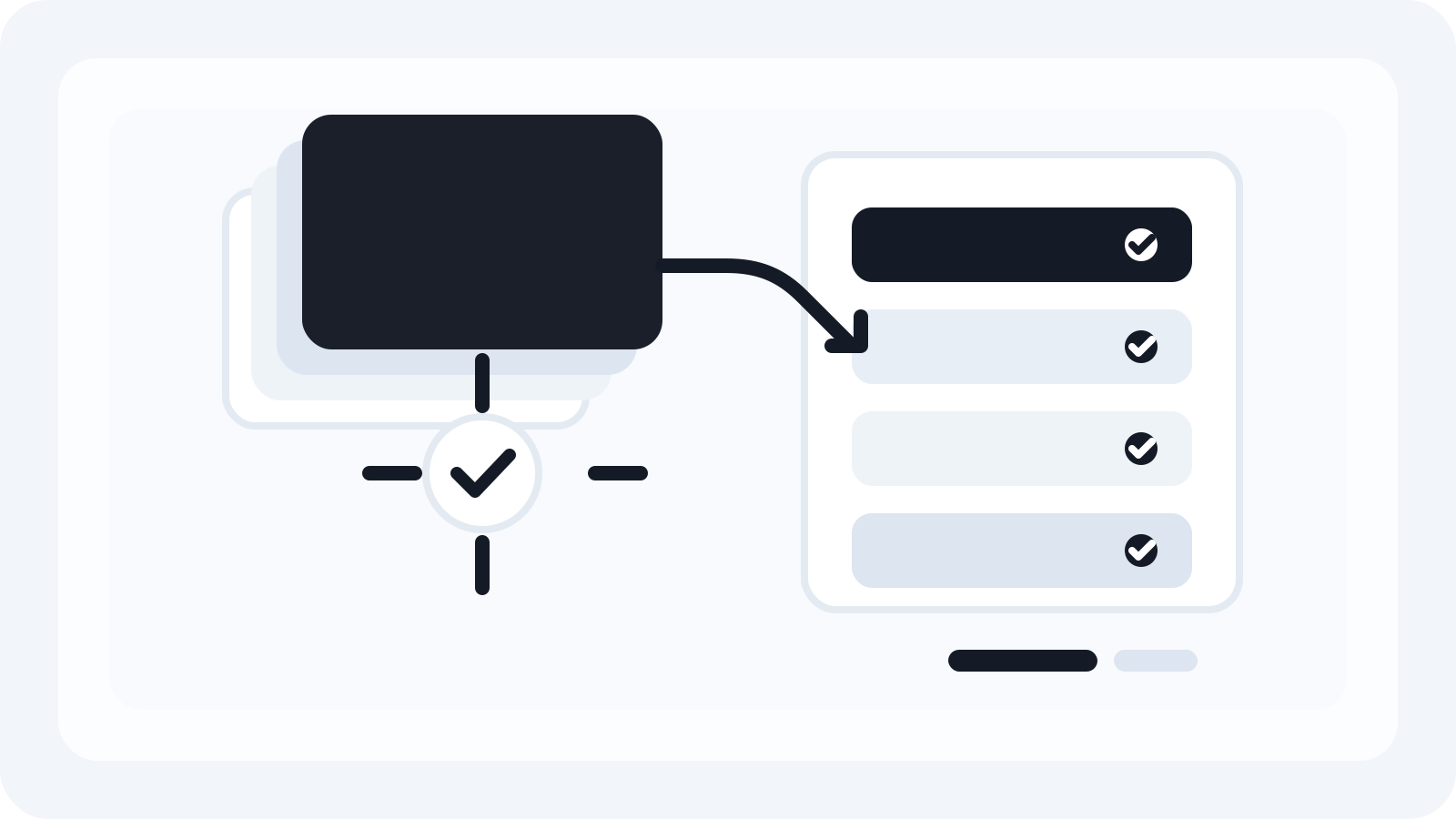
Turn one approved master into many production files
Smart Resize helps Photoshop teams adapt key visuals faster while keeping PSD outputs editable for revisions and trafficking.
Why ad adaptation strains in-house teams
In-house creative groups are asked to deliver many sizes and variants for every approved concept: multiple display formats, platform-specific images, and sometimes localized copy. The pressure points are familiar—rushed timing after late approvals, inconsistent PSD structure across designers, and version drift when each size is built manually. A workable solution keeps three things true at once: design integrity, efficient production, and outputs that are simple for media and marketing ops to traffic.
This workflow shows how teams standardize the path from an approved key visual to a full set of on-brand sizes in Photoshop. It highlights where automation helps without turning designers into spectators.
The core phases of an in-house ad adaptation workflow
- Intake and scope
- Confirm placements and markets. Lock must-have sizes early.
- Capture legal lines, lockups, and copy length targets.
- Clarify what can flex: logo size range, background crop rules, CTA copy variants.
- Master approval
- Finalize a single master PSD (or layered comp) that expresses final typography, color, and hierarchy. This is the only file design debates should touch.
- Adaptation plan
- Translate placements into a size list and priorities, grouping by aspect ratio to reduce manual work.
- Batch generation
- Use structured templates or automation to produce first-pass canvases for the full size list.
- Human retouch passes
- Address outliers where cropping, copy, or legal wrapping needs designer attention.
- QA and packaging
- Apply a standard QA checklist, then export with consistent naming, compression, and delivery folders.
Master file standards: build for change
A master that adapts well saves hours downstream. Adopt these working rules:
- Layer semantics
- Name layers and groups predictably: 00_BG, 10_Image, 20_Logo, 30_Headline, 40_Sub, 50_CTA, 60_Legal.
- Keep smart objects for key visuals; avoid destructive rasterization.
- Type discipline
- Use paragraph/character styles. Store approved tracking/leading. Define min/max point sizes for headline, subhead, CTA, and legal.
- Grid and zones
- Define safe zones where text can live in narrow banners and tall portraits. Annotate these as guides.
- Asset flexibility
- Maintain a clean source for the hero image with at least 2–3 crops pre-approved: landscape, square, portrait.
- Color and contrast
- Prepare light/dark logo and CTA button variants to meet legibility on diverse backgrounds.
- Export control
- Pre-build export actions or presets that match media team requirements for color profile, file format, and compression.
For a Photoshop-specific setup reference, see the PSD setup guide.
Size planning across channels (with sourced specs)
A disciplined size list keeps production predictable. Consider three buckets:
- Responsive display and programmatic
- Common display canvases teams plan for: 300x250, 300x600, 160x600, 728x90, 970x250, 320x50/100, and large mobile banners.
- According to Google Ads Help, image assets widely used by Performance Max and responsive display include:
- Landscape image: 1200x628 (1.91:1)
- Square image: 1200x1200 (1:1)
- Portrait image: 960x1200 (4:5)
- Logos are often requested as square (e.g., 1200x1200) and wide (e.g., 1200x300) for machine placements.
- Treat these as starting points; confirm with your media team’s placement map.
- Social and content placements
- Most platforms accept 1:1 square and 4:5 portrait images, alongside 16:9 landscape. Confirm platform overlays and UI cutouts.
- Out-of-home, retail media, or custom units
- Build only the sizes required by the flight. These often require bespoke adjustments rather than batch resizing.
Note on accuracy: the dimensions above are drawn from Google Ads Help pages on image assets and specs. Platform rules change; re-check the current help centers during intake.
Copy, logo, and legal: guardrails that prevent rework
Before any batch generation, define acceptable ranges that keep brand integrity while avoiding back-and-forth:
- Copy ranges per size family
- Headline: define maximum characters per family (e.g., 30–45 for landscape banners, 40–70 for square, 45–85 for portrait). Track this during intake.
- Legal/disclaimers: define a minimum point size for legibility and a maximum line count before truncation or “See terms” handoff.
- Logo and CTA scales
- Establish percentage ranges of canvas height for logo and CTA button. Retain square and horizontal logo variants.
- Photography handling rules
- Identify “no crop” zones for faces, product edges, and background brand shapes.
- Accessibility and contrast
- Require minimum contrast ratios for text over imagery. Prepare alternate field colors when backgrounds vary.
These rules reduce exceptions, preserving designer time for the few sizes that truly need hand art direction.
Decision tree: when to auto-fit vs. retouch
- Auto-fit candidates
- Ratios near the master (e.g., 1200x628 to 970x250) where typography can scale predictably.
- Square and portrait variants when the hero allows centered or rule-based crops.
- Needs designer attention
- Extreme elongations (e.g., 728x90 or 320x50) where legibility suffers at automated headline sizes.
- Legal-heavy markets or regulated verticals that alter line breaks.
- Product shots that lose context when cropped vertically.
Plan your time accordingly: run automation first, then schedule human passes on the 10–20% of sizes that need them.
Where Photoshop automation fits (and where Smart Resize helps)
Photoshop remains the ground truth for teams that must deliver layered, editable outputs and match brand typography exactly. Automation should:
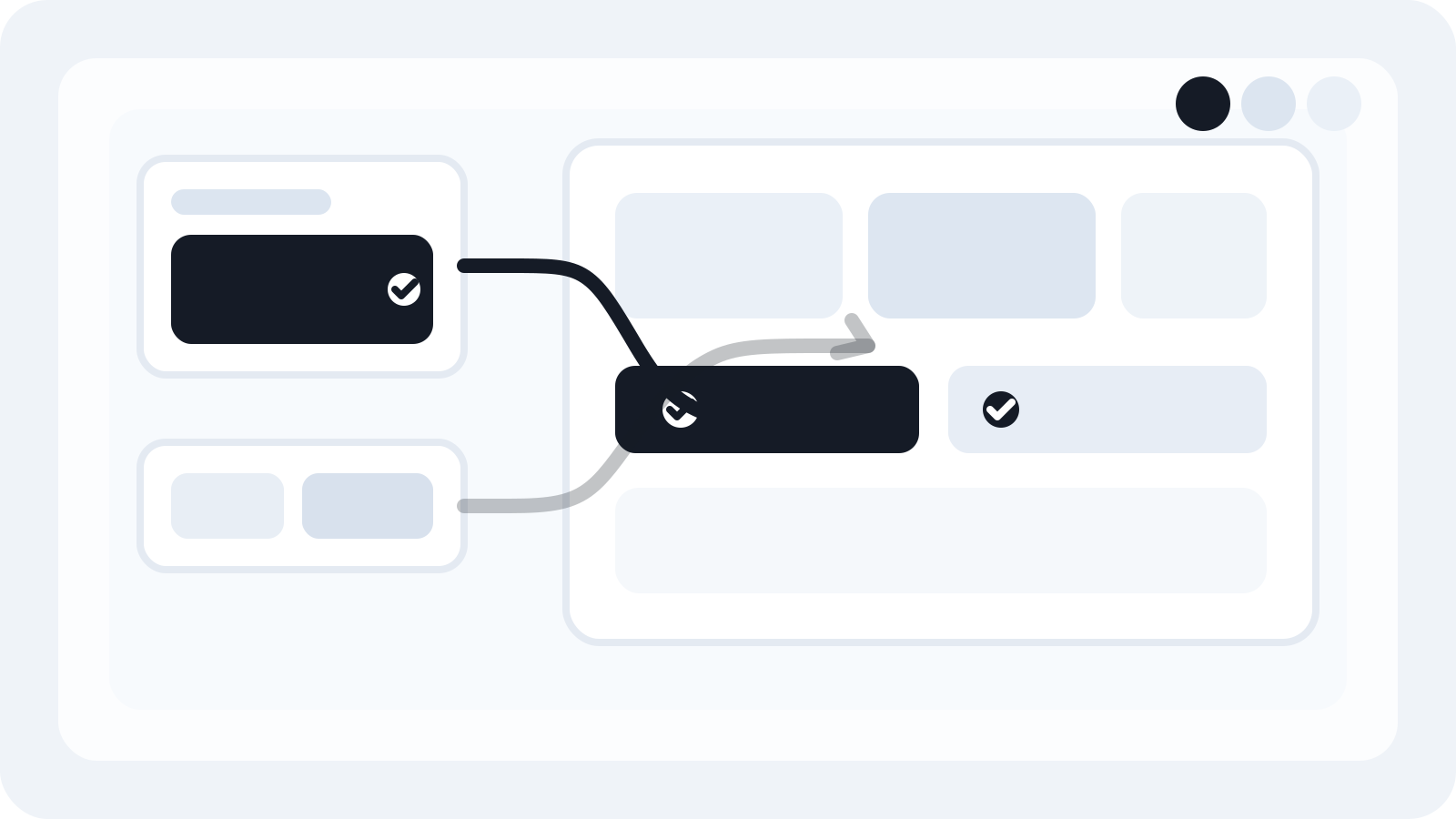
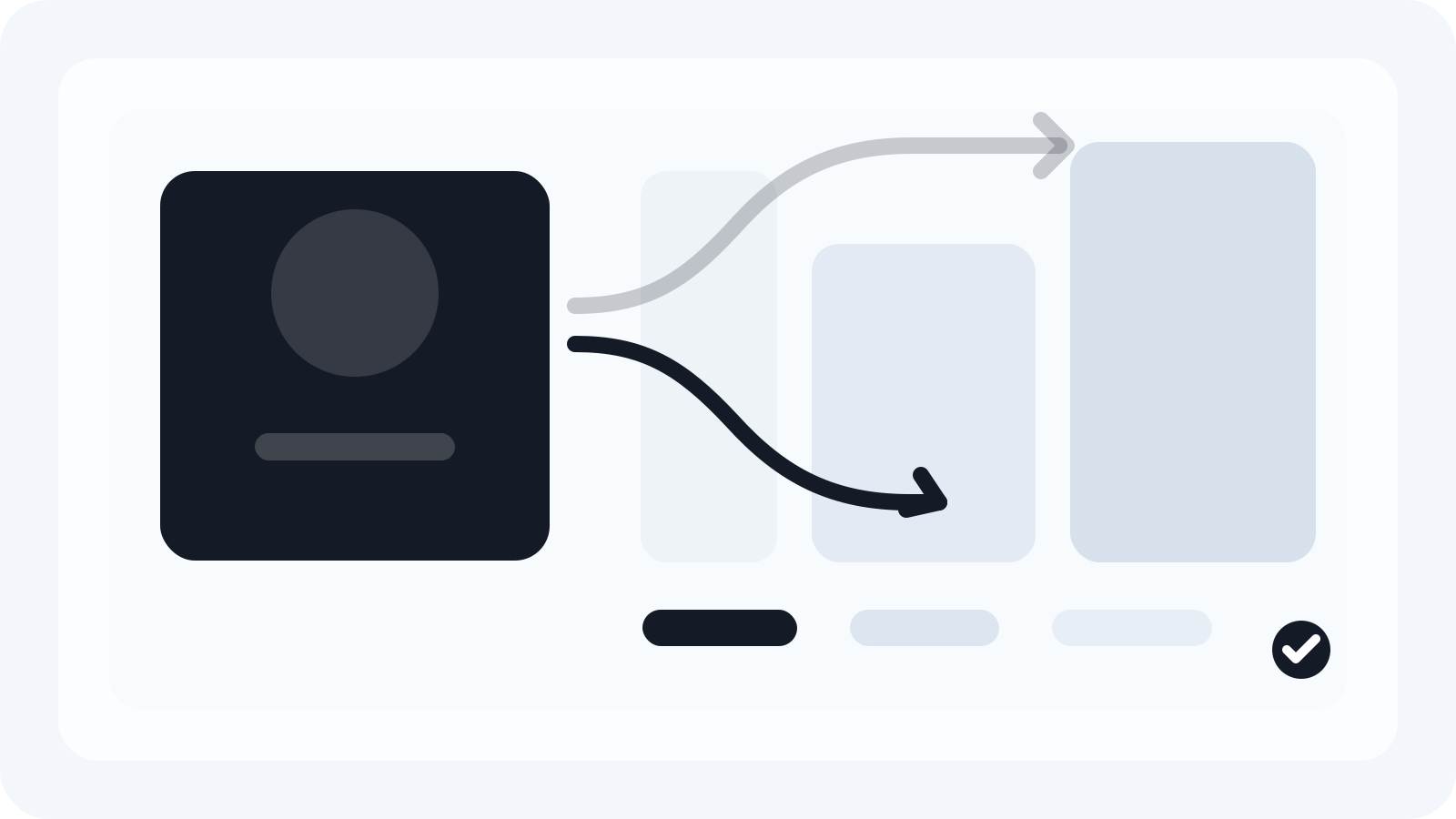
- Generate canvases for a committed size list from a single approved master, preserving layers and editability.
- Map named layers to placements (logo zone, headline box, CTA button) and apply scaling rules you control.
- Output trafficking-ready folders with correct naming, compression, and color profiles.
Smart Resize is a Photoshop plugin designed for this production layer. Teams use it after the master is approved to cut the repetitive work of building dozens of canvases, while keeping PSD outputs editable for later changes by brand, legal, or media ops. If you want to review the mechanics, the Smart Resize quick start covers how to load a master, enter your size list, and generate layered results. For licensing options, see Smart Resize pricing.
A practical sequence from brief to files
- Build the size list and constraints
- Translate the media plan into exact pixel sizes and platform image assets. Include the Performance Max images (1200x628, 1200x1200, 960x1200) and, if needed, square and wide logos (e.g., 1200x1200 and 1200x300) per Google Ads Help.
- Capture copy character limits and legal lines per market.
- Lock the master PSD
- Confirm text styles, color roles, and export actions. Keep groups and layer names consistent.
- Map sizes to rules
- Define min/max font sizes and padding per size family.
- Save hero crops for landscape, square, and portrait in advance.
- Batch-generate first passes
- Load the master and your size list into your automation step. In Smart Resize, that’s Load key visuals and Enter sizes.
- Generate layered outputs for the entire set; see Generate assets.
- Human art direction on exceptions
- Focus on narrow leaders and micro banners. Adjust hierarchy, tweak kerning/wrapping, and recompose photography as needed.
- QA and export
- Run a repeatable QA checklist (see below), then export with preset compression and color management. In Smart Resize, define Output settings once to keep file names and weights consistent.
QA essentials for trafficking-ready files
- Pixel integrity
- Check crisp edges on logos and buttons. No unintended resampling or halos.
- Type hygiene
- Confirm minimum sizes, line breaks, and hyphenation behavior. Verify legal legibility on low-res banners.
- Contrast and color
- Test on light and dark OS themes and a mid-gray background. Confirm brand colors meet contrast targets over imagery.
- Export settings
- Verify color profile (e.g., sRGB for web), compression targets, and maximum file weight agreed with media.
- Naming and folders
- Name consistently: Brand_Campaign_Market_Size_Variant.ext. Ensure subfolders align with how the media team ingests assets.
Naming conventions that scale with teams and vendors
- Core format
- Brand_Campaign_Concept_Market_Size_Channel_Version.ext
- Examples
- Acme_SpringSale_KV1_US_300x250_Display_v03.jpg
- Acme_SpringSale_KV1_US_1200x628_PMax_v03.jpg
- Benefits
- Vendors and media teams can trace the creative without opening the file. Automated exports can target these patterns.
Resourcing and timing for small in-house teams
- One designer can typically batch-generate 20–40 sizes in under a day when the master is final and copy is locked. Expect an additional half day for exception retouching and QA.
- When localizations are required, hold the structure constant. Swap copy and legal in grouped text layers and re-run exports to avoid forking the PSD.
- For peak weeks, consider a rhythm: Day 1 master lock, Day 2 batch build + exceptions, Day 3 QA + delivery, Day 4 localization passes.
Example: one approved key visual to a complete set
- Brief: US campaign, display + Performance Max, 14 total sizes. One master PSD with headline, sub, CTA, product cutout, and texture background.
- Plan: Include 300x250, 300x600, 160x600, 728x90, 970x250, 320x50, 320x100; add 1200x628, 1200x1200, 960x1200 image assets and square/wide logos.
- Steps: Run batch generation from the master. Review narrow leaders (728x90, 320x50) manually to keep a two-line headline and legible CTA. QA, then export with standard naming.
- Outcome: Delivery in one working day with layered PSDs for each size and final JPG/PNG per media request, leaving room for late copy swaps.
Where Smart Resize fits in your toolkit
Smart Resize is best used after the master PSD is approved and your size list is final. It maps named layers to size rules and generates layered, editable canvases, then exports using consistent presets. It does not replace art direction; it shortens the steps between “approved concept” and “first complete set,” so designers can spend time on exceptions and quality. If you need to evaluate the workflow before committing, start with the Smart Resize quick start. When your team is ready to standardize licensing, review Smart Resize pricing.
Sourcing note: Size references for Performance Max and responsive display image assets (e.g., 1200x628, 1200x1200, 960x1200) and logo formats (e.g., square and wide) are based on current Google Ads Help pages. Re-check official help centers for updates before each campaign.
Smart Resize
Need the workflow before the pitch?
Use the Smart Resize docs to review PSD setup, layer mapping, size entry, and export configuration.
FAQ
How many ad sizes should an in-house team plan for by default?
Start with a core display set (300x250, 300x600, 160x600, 728x90, 970x250, 320x50/100), plus platform image assets used by Google Ads: landscape 1200x628, square 1200x1200, and portrait 960x1200 (per Google Ads Help). Add brand-specific social/story placements only if the channel plan requires them. Make a default pack per market, then prune or add sizes per campaign.
Where does Photoshop automation help and where should a designer intervene?
Automation excels at generating consistent canvases, placing assets, scaling type within constraints, outputting organized files, and enforcing naming. A designer should step in when copy length breaks hierarchy, when key photography needs recomposition for extreme aspect ratios, or when legal lines require manual kerning and wrap control. Treat automation as the first pass; reserve human time for the exceptions.
What’s the fastest way to get from an approved key visual to trafficking-ready files?
Lock the master PSD typography, grid, and layer naming first. Map sizes, establish copy character counts, and load the master into an automation step for batch generation. Perform human retouch passes on outliers, then run a structured QA that checks pixel density, contrast, legibility, and file weight, followed by export using pre-approved naming and compression profiles.
Sources and verification
About image assets for Performance Max campaigns
https://support.google.com/google-ads/answer/14530211?hl=en
The HubSpot Customer Platform
https://blog.hubspot.com/marketing/banner-ad-size
IAB New Ad Portfolio: Advertising Creative Guidelines
https://www.iab.com/guidelines/iab-new-ad-portfolio/
Google Ads specs: ad formats, sizes, and best practices
https://support.google.com/google-ads/answer/13676244?hl=en-EN
About advanced format options for responsive display ads
https://support.google.com/google-ads/answer/9848687?hl=en