Smart Resize
Turn one approved master into many production files
Smart Resize helps Photoshop teams adapt key visuals faster while keeping PSD outputs editable for revisions and trafficking.
Resizing artwork shouldn’t destroy your ability to revise headlines, swap language, or update a logo in a week. The key is non-destructive structure and a repeatable method that respects type, vector art, effects, and masks. This guide shows how teams keep PSDs editable when moving from one approved key visual to dozens of sizes.
Why flattening creates expensive downstream work
Flattening seems fast until you need to change a date, retouch a product edge, or legal updates hit. Costs show up later:
- Text becomes pixels: kerning, hyphenation, and language changes turn into manual re-typesetting.
- Brand marks degrade: raster logos or scaled-down pixels create soft edges and inconsistent color.
- Effects don’t scale: drop shadows, glows, and strokes look wrong after naive scaling.
- QA expands: every revision requires rework across all sizes instead of an edit to a single source.
- Handoffs stall: flattened files limit collaboration across agencies and in-house teams.
Keep the file layered and the resizing process non-destructive so edits remain quick, auditable, and consistent.
Structure the source so layers survive any size
A layered master is more than “organized.” It encodes intent so any size can be built from it.
- Group by role, not by chance: Background, Subject/Imagery, Logo, Copy, CTA, Legal/Lockups, Color/FX, Guides/Overlays. Clear roles let juniors and vendors navigate safely.
- Convert pixel imagery to Smart Objects: This preserves original pixels, enables reversible transforms and filters, and allows vector content (from Illustrator) to scale cleanly.
- Prefer vector for logos and UI shapes: Use shape layers or linked AI files so crisp edges hold at any size.
- Keep type live: Store key paragraph/character styles and avoid rasterization. Maintain leading and tracking choices at the style level.
- Use masks instead of erasing: Layer masks, vector masks, and clipping masks keep underlying pixels intact.
- Centralize recurring assets: Logos, badges, and product renders as linked Smart Objects ensure changes propagate.
- Encapsulate complex composites: If a subject retouch requires many steps, wrap it as a Smart Object to travel as one unit across sizes.
- Record alternates with Layer Comps: Create comps for long vs. short headlines, alternate product crops, or legal variants.
According to Adobe’s documentation, Smart Objects preserve an item’s source data so you can transform and filter it non-destructively. In production terms: scale and sharpen repeatedly without baking in quality loss or losing editability of the original layer.
Plan safe zones before you create variants
Resizing is easiest when your master already anticipates multiple aspect ratios. Define these before the first size is made:
- Live area vs. trim: Keep copy and logos inside a conservative live area that will survive crops to 1:1, 4:5, 9:16, and 1.91:1.
- Aspect ratios first, pixels second: Decide on the core ratios your campaign needs, then map exact pixel sizes.
- Guide overlays: Build a Guides/Overlays group with named guides for 1:1, 4:5, 9:16, etc., and lock it. Hide or show by need.
- Focal point planning: Place the subject where it won’t be clipped when moving from landscape to portrait.
Sourced size examples for planning (verify current specs at the time of trafficking):
- Google Ads responsive and Performance Max image assets commonly include landscape around 1200×628, square around 1200×1200, and portrait around 960×1200 (per Google Ads Help, subject to change).
- Social placements regularly use 1080×1080 (square) and 1080×1350 (vertical) among others (reported by social sizing guides as of 2026). Platform policies change; always confirm final pixel dimensions and file weight limits with the latest platform documentation before export.
The point isn’t memorizing numbers—it’s designing a master that can lose or gain horizontal/vertical real estate without breaking hierarchy.
Common mistakes that break editability
- Rasterizing type or logos for a quick trick: You’ll pay for it with every language or copy change.
- Scaling pixel layers repeatedly without Smart Objects: Quality degrades and artifacts appear.
- Ignoring layer style scaling: Strokes and shadows look wrong after transforms if you don’t adjust Scale Effects.
- Collapsing adjustments into pixels: Convert to Smart Filters or keep adjustments as separate layers.
- Using destructive crop/erase: Favor non-destructive masks, vector masks, and Artboards.
- Warping brand marks to fit: Establish size-specific lockups; don’t distort identity elements.
- Skipping safe-zone overlays: Logos and CTAs drift into cutoffs when you move between ratios.
- Inconsistent DPI and color management: Keep a consistent working profile and resolution strategy to avoid surprises on export.
Resizing methods that preserve layers
Use techniques that keep structure intact and edits reversible:
- Artboards for multi-size sets: Create a separate Artboard per size. Shared linked Smart Objects keep brand assets consistent while each Artboard maintains its own guides and exports.
- Canvas Size for aspect changes: Expand or trim canvas without resampling. Recompose with masks and groups rather than scaling the entire document.
- Transform groups, not atoms: Free Transform at the group level (e.g., “Copy” or “Product”) to keep relationships intact. Fine-tune individual layers after.
- Smart Objects for imagery: Place raster images and Illustrator artwork as Smart Objects. Apply filters as Smart Filters; adjust later if needed.
- Content-Aware Scale with protection: When extending backgrounds, create an alpha channel protecting the subject so expansion targets empty areas. Use sparingly; it’s for backgrounds, not typography or logos.
- Maintain effect parity: After major size changes, run Layer > Layer Style > Scale Effects and compare to your style tokens.
- Use masks to crop per size: For tight landscapes or verticals, create size-specific masks inside each Artboard/group so the source imagery remains intact.
These steps maintain a layered, editable master and derivatives, so the cost of late edits stays low.
Where Smart Resize fits in a professional workflow
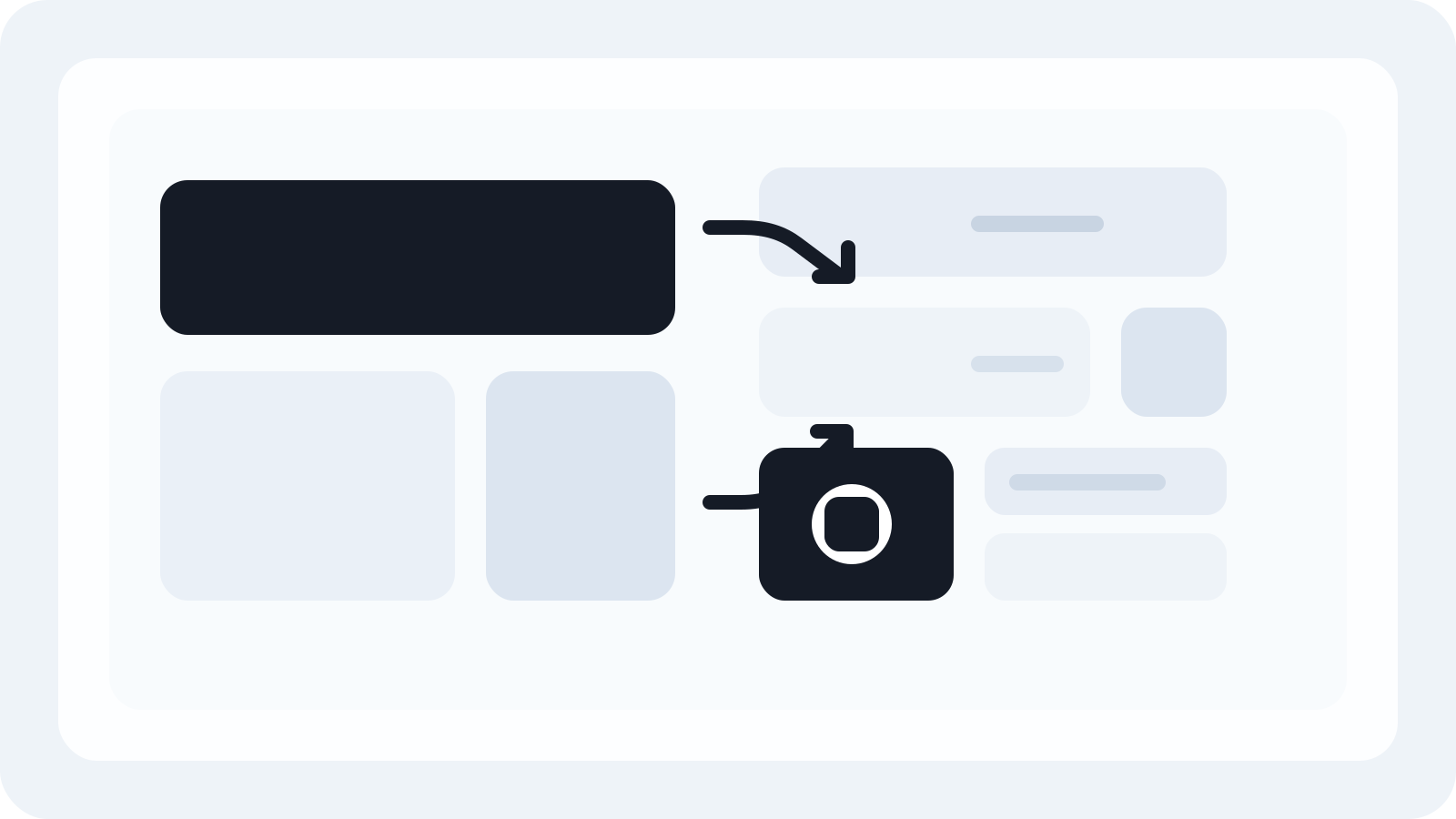
Once your source PSD is structured with clear roles, safe zones, and Smart Objects, repetitive resizing is still time-consuming. This is where Smart Resize helps production teams:
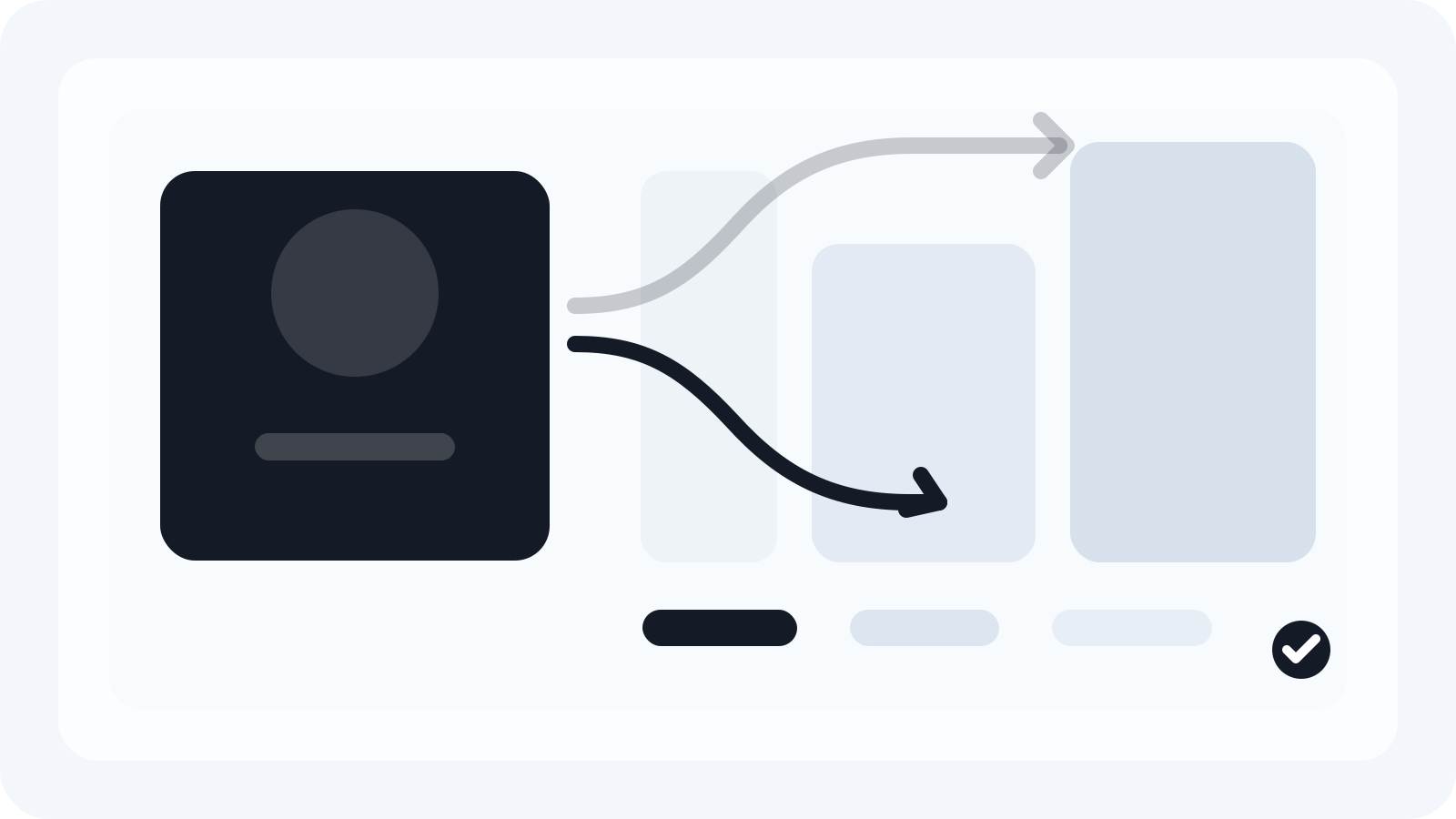
- You load your approved key visual, map layer roles once, and enter target sizes.
- The plugin generates new, layered PSDs per size, keeping type live, logos linked, and masks non-destructive.
- Exports can be configured per channel without flattening your working files.
If you’re auditing your current file structure, start with the PSD setup guidance in our PSD setup guide. When you’re ready to see the workflow in motion, the Smart Resize quick start walks through loading key visuals, entering sizes, and generating outputs. Teams evaluating tooling can also review Smart Resize pricing or pull down a build from the Smart Resize download page.
Smart Resize isn’t a substitute for sound Photoshop craft. It accelerates the repetitive part after the structure is right, helping teams go from one approved master to many editable production files without resorting to flattening.
Internal checklist: preserve PSD integrity every time
Use this preflight before you create the first alternate size:
- File hygiene
- Master file named with version and market: KV_Master_v03_EN.psd
- Document profile and resolution confirmed; color-managed workflow agreed across teams
- Fonts and linked assets available to all collaborators
- Layer roles
- Background, Imagery, Logo, Copy, CTA, Legal, FX, Guides groups are present and named
- Logos and icons are vector or linked Smart Objects
- Headlines and body copy remain live type with styles
- Smart structure
- All photography and composites converted to Smart Objects
- Adjustment layers used instead of destructive corrections
- Complex subjects encapsulated as Smart Objects with masks
- Safe zones and guides
- Overlays for 1:1, 4:5, 9:16, 1.91:1 verified
- Focal point works across aspect ratios; critical content within live area
- Scaling behavior
- Test resize one layout to square and vertical: check layer styles via Scale Effects
- Confirm effects, strokes, and grids look intentional at each size
- Versioning and review
- Layer Comps for headline lengths and legal variants
- Comment and approval flow agreed: which PSD is the source of truth
- Output sanity check
- Confirm latest platform specs and file weight constraints
- Export settings documented; layered masters archived alongside finals
FAQ: exports, grouped layers, and versioning
See answers below for recurring production questions.
-
Can I keep grouped layers but export per size efficiently?
- Yes. Maintain grouped, layered PSDs for each size and export finals as the channel requires. If you’re using Smart Resize, configure Output settings once and apply across the set.
-
How do I map one headline to different lengths without duplicating work?
- Use Layer Comps for headline states (Short/Standard/Long). Test each comp on core aspect ratios to validate breaks and hyphenation before scaling to the full size list.
-
What about DPI? Do I need 300 ppi for digital?
- For screen assets, pixel dimensions matter more than ppi. Keep a consistent working resolution (often 72–150 ppi for on-screen work) and deliver the exact pixel sizes the platform specifies.
-
Should I bake legal lines into imagery?
- Keep legal as live text or vector for last-minute changes and market variants. Only rasterize on final export if a specific channel demands it.
-
How do I detect assets that won’t scale well?
- Before committing, stress-test the master by building one landscape, one square, and one vertical. If a logo, gradient, or product crop fails in any, revise the master before duplicating effort.
Resizing without flattening is mostly discipline—clear roles, Smart Objects, masks, and safe zones—plus a reliable way to propagate that structure across many sizes. If you need to turn one approved master into layered production files faster, review Smart Resize pricing or use the Smart Resize quick start to assess the workflow with your existing PSDs.
Smart Resize
Need the workflow before the pitch?
Use the Smart Resize docs to review PSD setup, layer mapping, size entry, and export configuration.
FAQ
What’s the safest way to resize a complex PSD without flattening?
Duplicate the master, then adjust Canvas Size or use Artboards to change aspect, not Image Size. Group by role (Background, Imagery, Logo, Copy, CTA), convert pixel imagery to Smart Objects, keep text live, and use masks for crops. Transform groups instead of individual layers where possible, and scale layer styles via Layer > Layer Style > Scale Effects to maintain appearance.
Should I use embedded or linked Smart Objects for brand assets?
Use linked Smart Objects for assets shared across many files (e.g., logo, legal bugs) so one update cascades. Use embedded when portability matters (handing off a single PSD). For large campaigns, a small brand library folder with linked AI/PSD assets keeps files lighter and enforces consistency.
How do I avoid wrecking layer styles when I scale a layout?
Before transforming, note key effect sizes (stroke width, shadow distance). After resizing, run Layer > Layer Style > Scale Effects to proportionally adjust. Alternatively, move some styling to vector shapes (strokes/fills) or Adjustment Layers so they scale more predictably across sizes.
Are Artboards better than a single canvas for multi-size campaigns?
For sets, Artboards keep each size self-contained with its own guides, while sharing linked Smart Objects. They simplify exports and naming. A single canvas is fine for one-off aspect changes, but it becomes harder to manage versioning and bleed/live areas across dozens of sizes.
Can I keep layered outputs for trafficking while exporting finals efficiently?
Yes. Maintain a layered master and, if needed, layered size-specific PSDs for review and future edits. Export flattened deliverables for ad ops as required. With Smart Resize, you can generate layered PSDs per size and then use Output settings to export final PNG/JPG while preserving the editable source.
Sources and verification
Create embedded Smart Objects
https://helpx.adobe.com/photoshop/using/create-smart-objects.html
Social media image sizes for all networks [May 2026]
https://blog.hootsuite.com/social-media-image-sizes-guide/
Google Ads specs: ad formats, sizes, and best practices
https://support.google.com/google-ads/answer/13676244?hl=en-EN
About image assets for Performance Max campaigns
https://support.google.com/google-ads/answer/14530211?hl=en
About advanced format options for responsive display ads
https://support.google.com/google-ads/answer/9848687?hl=en