Smart Resize
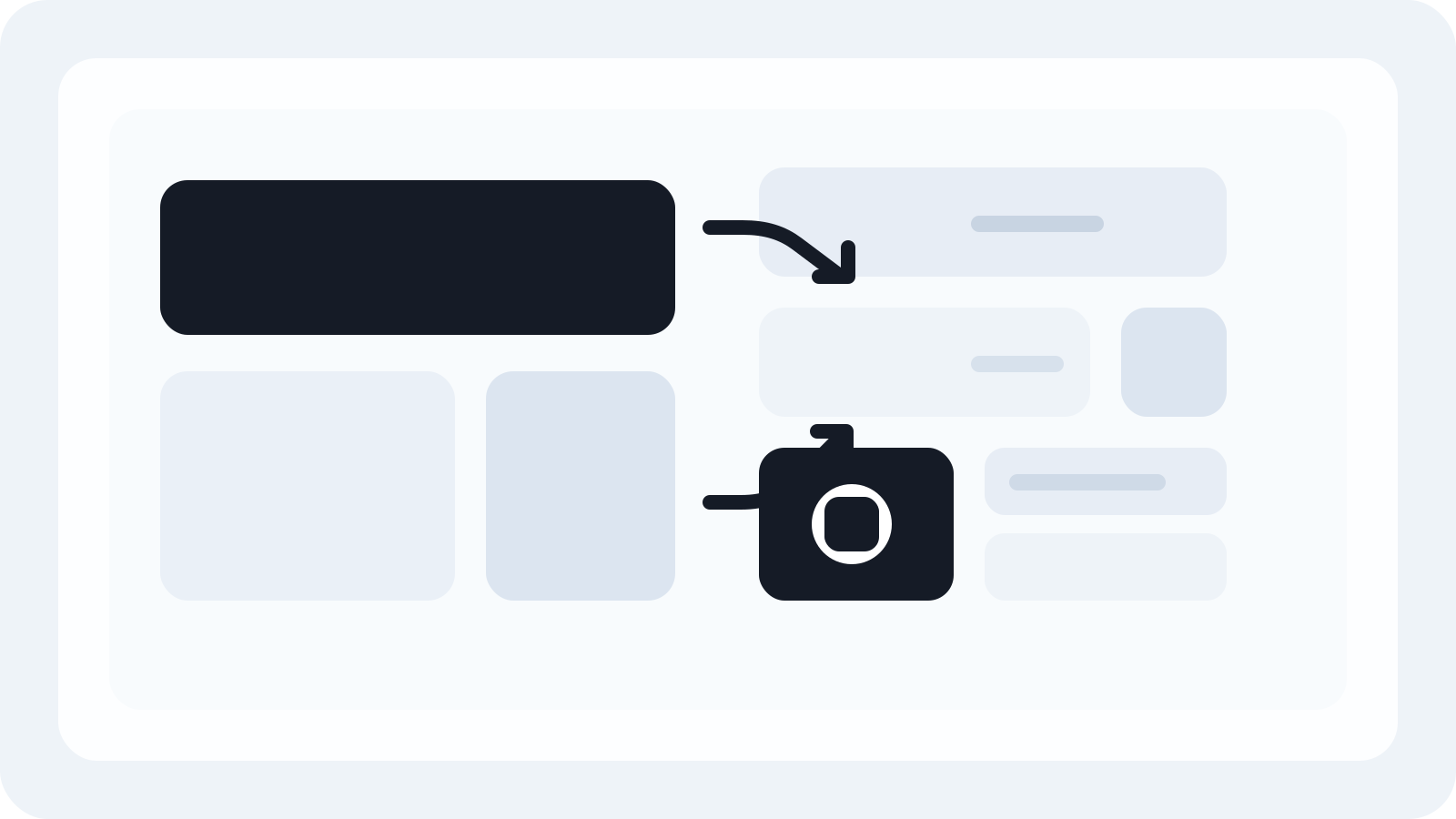
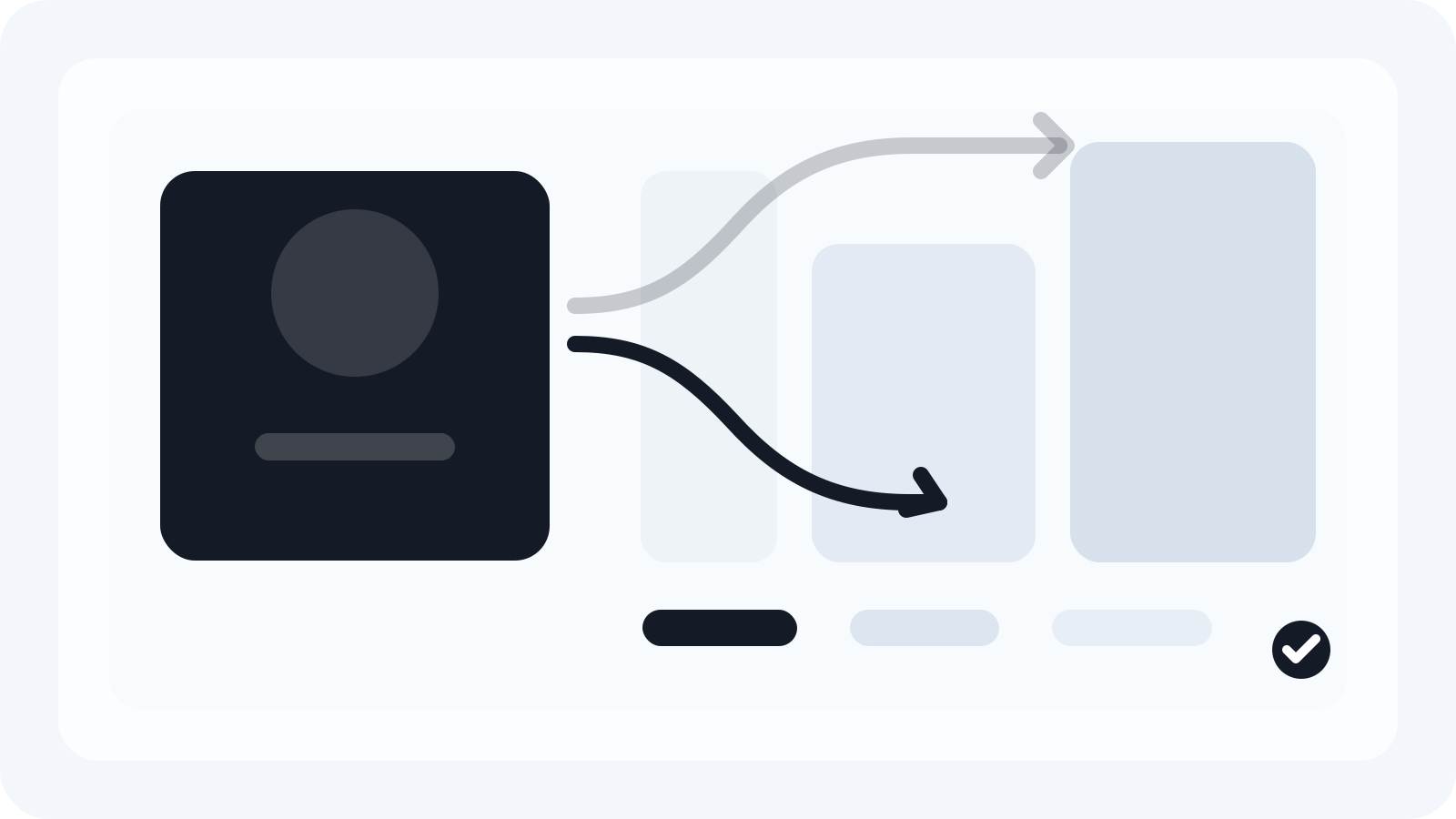
Turn one approved master into many production files
Smart Resize helps Photoshop teams adapt key visuals faster while keeping PSD outputs editable for revisions and trafficking.
Creating orientation variants is less about scaling pixels and more about preserving intent: hierarchy, focal point, and brand components that survive every aspect ratio. The approach below gives creative and production teams a consistent way to turn one approved master into publish-ready vertical, horizontal, and square layouts while staying fully editable in Photoshop.
Why vertical and horizontal variants matter in real media plans
Media plans rarely standardize on one aspect ratio. A single campaign might require landscape display banners, vertical social placements, and square feed posts. If the layout system isn’t thought through at the master stage, every new size becomes a mini redesign.
Designing for orientation early prevents late-stage compromises:
- Headline remains legible even when space compresses vertically.
- Product and logo hold consistent prominence without odd scaling.
- CTA positioning feels intentional across placements.
- Legal and offer qualifiers stay readable and compliant.
A master that anticipates orientation changes can be adapted quickly and confidently—by you or by anyone else who touches the file.
Sourced orientation specs at a glance (confirm before trafficking)
Platform specifications change. Always confirm in official docs before final delivery. As of recent public guidance:
- Google Ads (image assets and responsive formats): Google’s help resources list common creative aspect ratios such as landscape 1200×628, square 1200×1200, and portrait 960×1200, along with additional sizes like 600×314 and 1200×300 for certain placements. See Google Ads Help for image assets and size recommendations. [Sources: Google Ads Help pages covering specs and Performance Max image assets.]
- Social networks: Current guides from Buffer (2026) and Hootsuite (May 2026) include examples like Instagram portrait 1080×1350, Instagram square 1080×1080, landscape 1080×566 to 1200×628 ranges depending on network, and YouTube thumbnails commonly at 1280×720. [Sources: Buffer and Hootsuite social image size guides.]
These numbers are representative and sourced. Treat them as a checklist to validate against each platform’s latest requirements before export.
Set up a robust master PSD that survives any orientation
A durable master makes orientation changes predictable. In Photoshop, build the key visual with these practices:
- Use vector smart objects for logos, icons, and UI elements so scaling stays crisp.
- Name layers by role (e.g., 01_Headline, 02_Subhead, 03_Product, 04_Logo, 05_CTA, 06_Legal). Production teams can instantly map what moves and what stays.
- Define a grid and safe areas: keep a text-safe inset and a brand-safe corner for the logo/CTA. Add visible guides so variants don’t drift.
- Lock type with paragraph/character styles. Establish size ramps (e.g., H1/H2/Body/Legal) and consistent leading. This lets you downscale responsibly in tighter formats.
- Keep copy in separate text layers with bounding boxes set to a sensible max width so line lengths don’t become unreadable in horizontal layouts.
- Isolate background plate(s) and product as independent layers. It’s easier to anchor the product differently in portrait vs. landscape without affecting the background.
If you’re evaluating Smart Resize for production, align your master file with the plugin’s docs so layer roles translate cleanly. The PSD setup guide shows how to organize layers for efficient batch adaptation.
Layout logic that holds across landscape, portrait, and square
Before you make a single variant, decide how the system adapts:
- Anchor points: Choose where the product locks (e.g., bottom-right) and where the headline starts (e.g., top-left). When the canvas flips orientation, those anchors should still feel intentional.
- Focal area and crop: Identify the key subject zone and define a cropping policy (fit vs. fill, and what gets trimmed first). Portrait crops often benefit from tighter vertical framing of the subject.
- Type reflow rules: Headline should tolerate one additional line in portrait without dropping below minimum size. Consider two-line CTAs for tall formats.
- Logo and CTA: Keep a minimum clear space. In landscape, they might share the bottom rail; in portrait, stack them vertically with a consistent gutter.
- Legal and disclaimers: Fix a minimum point size and reserve an area that doesn’t compete with core messaging. Never let legal shrink below compliance standards when space compresses.
Write these rules into a short system note inside the PSD (a topmost “Read Me” layer). It reduces back-and-forth when others adapt or review the file.
From one master to vertical and horizontal variants: a practical build
Here’s a Photoshop-first flow that avoids rebuilds:
- Validate the master at two extremes
- Duplicate your master artboard and set it to a representative landscape (e.g., 1200×628) and a representative portrait (e.g., 960×1200). Keep everything editable. If either breaks, fix the master now.
- Establish safe areas and bleed behavior
- Add guides for text-safe, logo-safe, and CTA-safe zones. Define whether backgrounds can bleed beyond crop to enable “fill” strategies when aspect ratios change.
- Create system components
- Turn the product and background into separate smart objects. For multi-asset campaigns, swap content inside the smart object rather than rebuilding placements.
- Confirm type ramps and line lengths
- Stress-test the headline with 10–15% longer copy. If it wraps poorly in portrait, adjust the max text box width or reduce the size ramp slightly.
- Save a clean master
- Keep only the validated, orientation-agnostic master artboard. This is what you’ll adapt repeatedly.
Where Smart Resize fits in a production pipeline
You can batch-adapt manually with artboards and guides. On teams producing many sizes per campaign, Smart Resize streamlines the repetitive parts while leaving you in Photoshop the entire time.
- Load the key visual: Start from your organized PSD and bring it into Smart Resize. See the short Smart Resize quick start.
- Enter required sizes: Add landscape, portrait, and square dimensions from your media plan. The Enter sizes docs cover custom and preset entries.
- Generate editable PSDs: Produce per-size PSDs that inherit your type layers, smart objects, and naming. The Generate assets and Output settings pages explain export controls and file naming.
Positioning note: Smart Resize is a $49 lifetime Photoshop plugin designed for creative and production teams. It reduces the manual layout work across orientations and keeps outputs editable for late changes and trafficking. If you need to evaluate budget, see Smart Resize pricing.
Orientation patterns you can rely on (with examples)
Use these patterns as starting points you can codify into your master:
- Horizontal (e.g., 1200×628 from Google Ads guidance)
- Split the canvas into a dominant visual zone (≈65–70% width) and a message rail (≈30–35%).
- Lock logo and CTA on a shared bottom rail; cap headline line length to avoid overlong measures.
- Vertical (e.g., 960×1200 as suggested in Google Ads image assets; Instagram portrait at 1080×1350 per social guides)
- Stack: product or key visual top/middle, headline under, CTA near the lower third, logo tucked into a brand-safe corner.
- Allow the headline one extra line without falling below the minimum size.
- Square (e.g., 1200×1200 common to both Google Ads and social guides)
- Center the subject; bias type to top-left for quick scanning. Keep the CTA large enough to remain legible on mobile feeds.
These are not rigid templates—treat them as systems that honor brand hierarchy across ratios.
QA and handoff checklist for orientation variants
Before you export and traffic:
- Type: Minimum sizes met? Balanced leading after wrap? No orphans/widows on key headlines.
- Cropping: Subject and logos clear in both portrait and landscape; nothing important sits on a trim edge.
- CTA: Tappable and readable in mobile contexts; adequate contrast.
- Legal: Minimum point size honored; sufficient padding from edges and other elements.
- Color and profiles: Consistent color space across variants; convert/export as required by the channel.
- File naming: Encode size, orientation, language, and version (e.g., Brand_Campaign_H1-Offer_EN_1200x628_v03.psd).
- Spot-check compression: If exporting flattened assets for certain ad servers, verify JPEG/PNG settings don’t crush fine type.
Handling edge cases without redesigning
- Very tall placements: Increase vertical gutters and allow headline wrap while keeping the CTA above the fold area.
- Extremely narrow horizontals: Reduce the headline size ramp one step and shorten max line length; lean on the product visual for impact.
- Long languages: Expand text box width slightly in landscape; in portrait, prefer one extra line over reducing point sizes below your minimum.
- Multiple product SKUs: Keep a unified crop policy inside the product smart object so each SKU change respects the same safe zones.
Example production cadence for a full media plan
- Day 1: Build and validate the master; prove it in one landscape and one portrait.
- Day 2: Enter all plan sizes (landscape, portrait, square) and generate PSDs. Touch up outliers that need nuanced art direction.
- Day 3: Localize, run final QA, and export trafficking packages per channel.
Teams doing this by hand can still succeed with tight discipline. If your plan runs into dozens of sizes per concept, Smart Resize reduces the time spent on repetitive resizing while keeping Photoshop at the center of the process. You can download the docs now to map this against your pitch or sprint schedule.
If you want to test on a live job, the docs from quick start to output cover the whole pipeline:
And when you’re ready to budget, see Smart Resize pricing.
Keep the article useful even without new tooling
Even if you don’t add tools right now, the same principles apply:
- Design a master that encodes rules rather than a fixed composition.
- Write and enforce orientation logic (anchors, type ramps, safe zones).
- Validate against current platform specs from official sources and trusted guides.
- Name layers and files so anyone on your team can pick up where you left off.
That discipline is what converts one approved master into consistent vertical and horizontal variants—without turning every new size into a separate design project.
Smart Resize
Need the workflow before the pitch?
Use the Smart Resize docs to review PSD setup, layer mapping, size entry, and export configuration.
FAQ
Should I design the square, vertical, or horizontal master first?
Start with the key placement that drives the brief—often a landscape hero or square social post—then validate the system by mocking one vertical and one horizontal early. If the layout logic breaks in either orientation, adjust the master now (grid, type scales, safe areas) before producing all sizes.
How do I keep text from reflowing poorly between orientations?
Use type styles with clear size ramps and lock maximum line lengths. Set alignment by content role (e.g., headline start-aligned, CTA right-aligned) and define minimum/maximum box widths. Keep legal text in its own container with a fixed point size and padding baseline so it doesn’t steal room from the headline when space tightens.
Will Smart Resize outputs stay editable for trafficking and late changes?
Yes. Smart Resize is built for Photoshop teams and generates editable PSDs. Layers, type, and smart objects remain intact so you can adjust copy, swap product shots, or update end cards without re-exporting the entire batch.
Can this workflow handle localization and longer languages?
Yes, if you plan for it in the master. Keep headline boxes flexible with a defined max width, allow two-line CTAs where needed, and reserve breathing room around legal lines. Run a quick localization test variant (e.g., German or French) to check for truncation before finalizing the system.
Sources and verification
Google Ads specs: ad formats, sizes, and best practices
https://support.google.com/google-ads/answer/13676244?hl=en-EN
Social Media Image Sizes in 2026: Guide for 9 Major Networks
https://buffer.com/library/social-media-image-sizes/
About image assets for Performance Max campaigns
https://support.google.com/google-ads/answer/14530211?hl=en
Social media image sizes for all networks [May 2026]
https://blog.hootsuite.com/social-media-image-sizes-guide/
The HubSpot Customer Platform
https://blog.hubspot.com/marketing/banner-ad-size