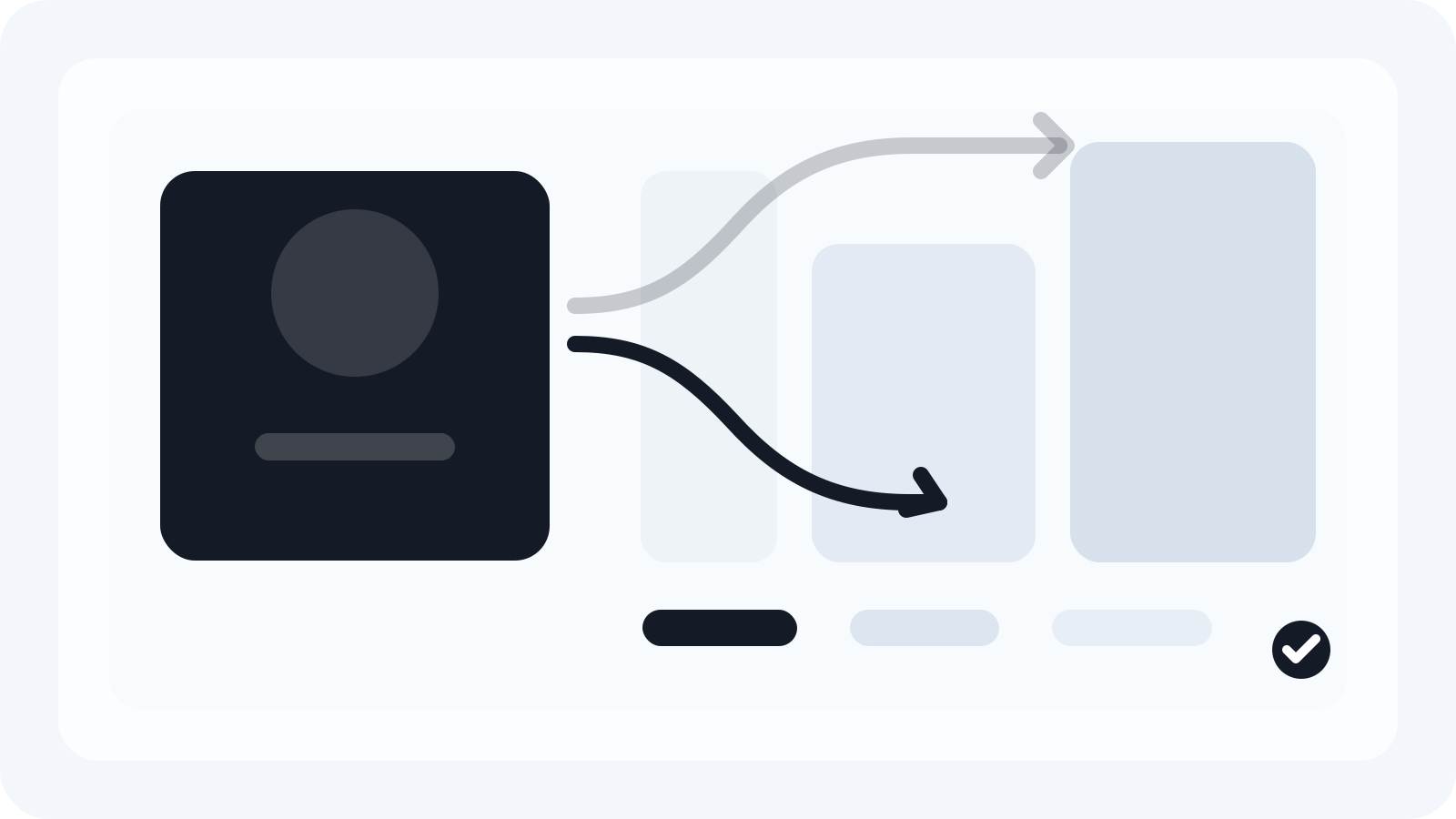
Smart Resize
Turn one approved master into many production files
Smart Resize helps Photoshop teams adapt key visuals faster while keeping PSD outputs editable for revisions and trafficking.
Why Performance Max assets feel different from classic banners
Performance Max (PMax) doesn’t ask for a grid of rigid banner sizes. It asks for a family of responsive image assets that can be recombined and rendered across YouTube, Discover, Gmail, and the Google Display Network. That shift has two implications for creative production:
- The unit of work becomes aspect ratios (landscape, square, portrait) rather than a long IAB size list.
- Cropping and masking can vary by placement, so compositions need deliberate safe areas and negative space.
Production teams used to delivering 10–20 fixed-size banners now need a smaller but more carefully planned image family—plus logos—that travel well across surfaces.
The sourced specs
The following image and logo specifications are summarized from Google Ads Help pages about Performance Max image assets and related creative guidance (checked May 2026). Treat them as the authoritative baseline and verify before each campaign, as Google can update details.
Image assets (static JPG or PNG; sRGB; up to ~5 MB each):
- Landscape (1.91:1)
- Recommended: 1200×628 px
- Minimum: 600×314 px
- Square (1:1)
- Recommended: 1200×1200 px
- Minimum: 300×300 px
- Portrait/Vertical (4:5)
- Recommended: 960×1200 px or 1200×1500 px
- Minimum: 480×600 px
Logo assets (JPG or PNG; transparency allowed; sRGB; up to ~5 MB each):
- Square logo (1:1)
- Recommended: 1200×1200 px
- Minimum: 128×128 px
- Landscape logo (4:1)
- Recommended: 1200×300 px
- Minimum: 512×128 px
General guidance from Google’s help content for image assets:
- Avoid borders, watermarks, or call-to-action overlays that mimic UI elements.
- Keep text minimal so it remains legible after responsive rendering.
- Expect smart cropping/masking in certain placements; maintain visual padding.
These are the platform rules. Everything that follows interprets them into a predictable Photoshop workflow you can repeat on every brief.
The workflow interpretation
Translating Google’s ratios and pixels into a studio-ready plan:
- Build for three ratios, not dozens of sizes. Supply landscape 1.91:1, square 1:1, and portrait 4:5 for every key visual. That coverage reduces aggressive crops and maximizes eligible inventory.
- Use recommended pixel dimensions. 1200-wide uploads strike a solid balance between quality and file size. Square logos at 1200×1200 and landscape logos at 1200×300 give Google enough resolution without bloating.
- Design with a conservative safe area. Keep logos, legal, packshots, and primary claims at least 6–8% in from all edges. Place nonessential background texture toward the edges to absorb responsive trims.
- Keep type minimal and high-contrast. Prefer short headlines and single claims over dense copy. Sanity-check at ~320 px wide to see what survives in smaller placements.
- Export in sRGB JPG for photography and sRGB PNG for transparency or vectors. Use subtle compression to stay under the ~5 MB limit while preserving edges in logos and type.
- Prepare two creative variants per ratio when possible. PMax benefits from asset variety; a second composition (or alternate crop) often improves reach or CTR without a separate photoshoot.
Recommended internal production set for campaign teams
For each campaign or burst, establish a consistent deliverable list. The goal is to minimize ambiguity during briefing and trafficking while giving media the coverage PMax needs.
- Image family (per key visual):
- Landscape 1.91:1 at 1200×628 (Variant A/B if creative allows)
- Square 1:1 at 1200×1200 (Variant A/B)
- Portrait 4:5 at 1200×1500 or 960×1200 (Variant A/B)
- Logos:
- Square 1:1 at 1200×1200 (on light and dark backgrounds if needed)
- Landscape 4:1 at 1200×300 (on light and dark backgrounds if needed)
- File hygiene:
- Naming: brand_campaign_visual-ratio_var.ext (e.g., acme_summer23_kv1-191x1_a.jpg)
- Color: sRGB throughout; proof main compositions at 100% in Photoshop
- QA: quick audit at smaller preview widths to check type, packshot, and legal legibility
If the media plan also runs classic Display line items or social, maintain those deliverables separately. Don’t let those size lists slide back into your PMax workflow; keep PMax focused on the three core ratios and logos.
Photoshop master setup for horizontal, square, and vertical adaptation
A tight PSD makes ratio adaptation faster and reduces creative drift during amends.
- Work from a single master PSD at generous dimensions (e.g., 3000–4500 px on the long side) to preserve retouching fidelity. Place the key visual as a Smart Object.
- Create ratio-based artboards or layer comps for 1.91:1, 1:1, and 4:5. Use vector shape masks to define live crops; avoid rasterized crops that lock you in.
- Establish safe-area guides per ratio (e.g., 6–8% inset). Keep the logo and key claims locked to these guides using smart guides or layout grids.
- Keep logos as separate Smart Objects with square and landscape variants preloaded. Prepare light/dark treatments and consistent padding.
- Centralize claims and legal in one text group with paragraph/character styles. That prevents reformatting drift across ratios.
- Export via an action or script that reads each artboard/layer comp and outputs JPG/PNG at target pixels in sRGB.
If you want a prebuilt approach that maps a single key visual, applies live ratio masks, and outputs an entire size list without fragmenting your PSDs, see the Smart Resize documentation for Load key visuals and Output settings.
Risks of manual file branching
Manually forking separate PSDs for each ratio seems harmless until approvals shift. Common failure modes:
- Inconsistent type and logo treatment across ratios after late-stage copy changes.
- Divergent color or retouching because teams export from different PSDs.
- Broken naming, missing variants, or outdated legal in one branch.
- Re-approval cycles multiplied by the number of branched files.
A single master that programmatically renders all required ratios avoids this drift and shortens trafficking cycles.
Where Smart Resize fits naturally
Smart Resize is a Photoshop plugin used by production teams to adapt key visuals into families of editable PSDs and export-ready files. It’s not a design toy; it’s a way to keep master-to-variant mapping predictable when campaigns require many outputs.
- Start from one approved key visual and define your ratio list (1.91:1, 1:1, 4:5) once.
- Map logos, claims, and safe areas so each ratio keeps consistent placement.
- Generate exports at Google’s recommended pixels (e.g., 1200×628, 1200×1200, 1200×1500) in sRGB with controlled compression, while keeping editable PSDs for amends.
- When a line changes, regenerate the full family without redoing layout per ratio.
You can review the setup in the Load key visuals and Output settings articles. If your team wants the production layer in place before the next sprint, see Smart Resize pricing.
Practical QA checklist before upload
Use this quick pass to prevent avoidable rejections or weak renders:
- Ratios present: 1.91:1, 1:1, 4:5. Logos included: 1:1 and 4:1.
- Pixels: match Google’s recommended sizes (not just the minimums).
- File size: each under ~5 MB; sRGB profile embedded.
- Text: concise, high-contrast, and inside the safe area; no UI-like buttons.
- Logo: legible at small sizes; no thin outlines that will break on dark backgrounds.
- Crop stress-test: preview at narrow widths; confirm nothing essential is clipped.
Notes on related formats
- Auto-generated and lightweight video variants may appear in PMax, but they are separate from static image assets. Treat them as an additional creative track, not a replacement for the three image ratios.
- If your media plan includes classic Responsive Display Ads outside PMax, the same ratio logic generally applies, but confirm any placement-specific nuances in Google Ads Help.
Production FAQ
Q: How many variations should we provide per ratio? A: Two strong variants per ratio is a pragmatic starting point for most budgets. Aim for meaningful differences—alternate crops, hierarchy, or product focus—rather than micro-tweaks.
Q: Should we export above 1200 px for extra sharpness? A: Google’s recommended sizes balance quality and speed. Larger uploads don’t guarantee better outcomes and may hit size limits. If you have intricate line art or tiny type, prioritize composition clarity and contrast over sheer pixels.
Q: Do legacy HTML5 banners satisfy PMax image needs? A: No. PMax consumes image assets and other creative inputs differently. Maintain HTML5 deliverables only if your plan includes separate placements that accept them.
If you want to pilot a ratio-first flow on a live brief without rebuilding your toolchain, the Smart Resize pricing page has a one-time license that fits most production budgets.
Smart Resize
Need the workflow before the pitch?
Use the Smart Resize docs to review PSD setup, layer mapping, size entry, and export configuration.
FAQ
What are the current Performance Max image sizes we should build?
For image assets, prepare three aspect ratios: Landscape (1.91:1) recommended at 1200×628 px, minimum 600×314 px; Square (1:1) recommended at 1200×1200 px, minimum 300×300 px; Portrait (4:5) recommended at 960×1200 or 1200×1500 px, minimum 480×600 px. For logos, supply Square (1:1) recommended at 1200×1200 px, minimum 128×128 px, and Landscape (4:1) recommended at 1200×300 px, minimum 512×128 px. JPG or PNG, up to ~5 MB per file, sRGB. Source: Google Ads Help, “About image assets for Performance Max.”
Do we still need fixed IAB banner sizes for Performance Max?
Performance Max relies on responsive image assets (ratios and recommended pixels), not the classic fixed IAB banner matrix. If you run separate Display line items that require HTML5 or fixed-size banners, maintain that set independently. For PMax, prioritize the three image ratios plus square and landscape logos.
Can Google crop or mask our images in different placements?
Yes. Google may crop or mask to fit placements across YouTube, Discover, Gmail, and Display. Build with generous padding and keep critical content inside a conservative safe area (e.g., 6–8% from edges). Supply all three aspect ratios to reduce aggressive crops.
Are images with transparent backgrounds allowed?
Yes. PNGs with transparency are accepted for logos and images. Use transparency thoughtfully—flat or light backgrounds often look more consistent across surfaces, while complex transparency can create contrast issues on some placements.
Sources and verification
Google Ads specs: ad formats, sizes, and best practices
https://support.google.com/google-ads/answer/13676244?hl=en-EN
About image assets for Performance Max campaigns
https://support.google.com/google-ads/answer/14530211?hl=en
About advanced format options for responsive display ads
https://support.google.com/google-ads/answer/9848687?hl=en
Social Media Image Sizes in 2026: Guide for 9 Major Networks
https://buffer.com/library/social-media-image-sizes/
Social media image sizes for all networks [May 2026]
https://blog.hootsuite.com/social-media-image-sizes-guide/