Smart Resize
Turn one approved master into many production files
Smart Resize helps Photoshop teams adapt key visuals faster while keeping PSD outputs editable for revisions and trafficking.
Why Google’s “image family” matters
Google’s responsive formats assemble ads from a pool of assets—copy, logos, images, and optional videos—rather than from a single fixed banner. Supplying a well‑organized family of images across key aspect ratios lets the system adapt to placements ranging from native cards to full‑width modules. For creative teams, this shifts production from dozens of fixed canvases to a smaller, curated set of crops and variants that can be reused across campaigns.
The practical implication: design a few intentional crops that preserve the idea, brand hierarchy, and legibility in every ratio. Then version smartly (offer text/no‑text, product/lifestyle) to give the algorithm choices without diluting the concept.
Sourced specs you should plan for
Sourced facts below are summarized from Google Ads Help pages for responsive formats and Performance Max (Google updates specifications; confirm current guidance in the Help Center before every large production batch):
- Landscape image (1.91:1). Common example: 1200×628 px.
- Square image (1:1). Minimum often cited: 300×300 px. Recommended example: 1200×1200 px.
- Portrait image (4:5). Common example: 960×1200 px.
- Logos. Square (1:1) and wide (4:1) logos are commonly requested. Examples include 1200×1200 px for square logo and 512×128 px for wide logo.
- File types. JPEG or PNG for images and logos; keep file sizes efficient to avoid upload or rendering issues.
- Responsive Display advanced options and Performance Max may apply additional processing such as asset enhancements or auto‑generated videos, which can crop or animate supplied images.
Workflow interpretation (what to do with those facts):
- Build a minimum pack of three creative images—1.91:1, 1:1, and 4:5—plus square and 4:1 logo files.
- Add at least one variant per aspect ratio (e.g., text vs. no‑text) for learning and placement coverage.
- Favor 2× (HiDPI‑friendly) working resolutions where possible and export efficiently; Google will scale down as needed.
PSD setup that survives revisions
Your PSD approach should produce consistent crops, stay editable, and avoid surprises when Google crops or auto‑enhances.
- Base on Smart Objects. Place photography and illustrations as Smart Objects so scaling and recropping stay non‑destructive.
- Vector where possible. Type, logos, and UI elements as live type and vector shapes keep edges clean at multiple outputs.
- Establish a universal grid. Define a central safe‑area rectangle common to all ratios (e.g., central 60–70% of the canvas) for headlines, call‑to‑action, and legal.
- Separate brand from message. Keep logo, CTA, and legal on their own groups for toggling across variants.
- Color management. Work in sRGB and proof at 100% view for smallest output size you expect to ship.
- Naming discipline. Prefix groups with functional roles (KV_, LOGO_, LEGAL_, CTA_) to map layers predictably across sizes.
If you want a ready‑made structure, the Smart Resize documentation shows a clean layer mapping approach for multi‑size outputs. See the PSD setup guide and the Smart Resize quick start.
From one approved master to a responsive image family
A repeatable production cadence keeps approvals, exports, and trafficking aligned with media deadlines.
- Lock the key visual
- Finalize the hero composition at a neutral working ratio (often 4:5 or 1:1) with type hierarchy, logo placement, and safe areas.
- Place hero photography/art as a Smart Object; keep an uncropped backup inside the object for future alternates.
- Define the size list
- Create a list covering landscape 1.91:1, square 1:1, and portrait 4:5, plus square and wide logos.
- Add optional alternates such as a product‑forward version and a lifestyle‑forward version. If you plan to test “no‑text” images, include them explicitly.
- Derive crops intentionally
- Duplicate the master into three canvases. Re‑compose each crop; don’t rely on blind center‑crop.
- Protect the logo clear space and headline line breaks across aspect ratios.
- Version the message
- Make variants that compress or expand the message depending on crop. For example, shorten headlines in 4:5 to avoid descenders clipping near CTAs.
- Export and QA
- Export clean, efficiently compressed files. For logos, prefer PNG with transparency.
- QA at 100% zoom, then at 50% to simulate downscaling. Check aliasing on thin strokes and hairlines.
Where Smart Resize fits (without changing how you design)
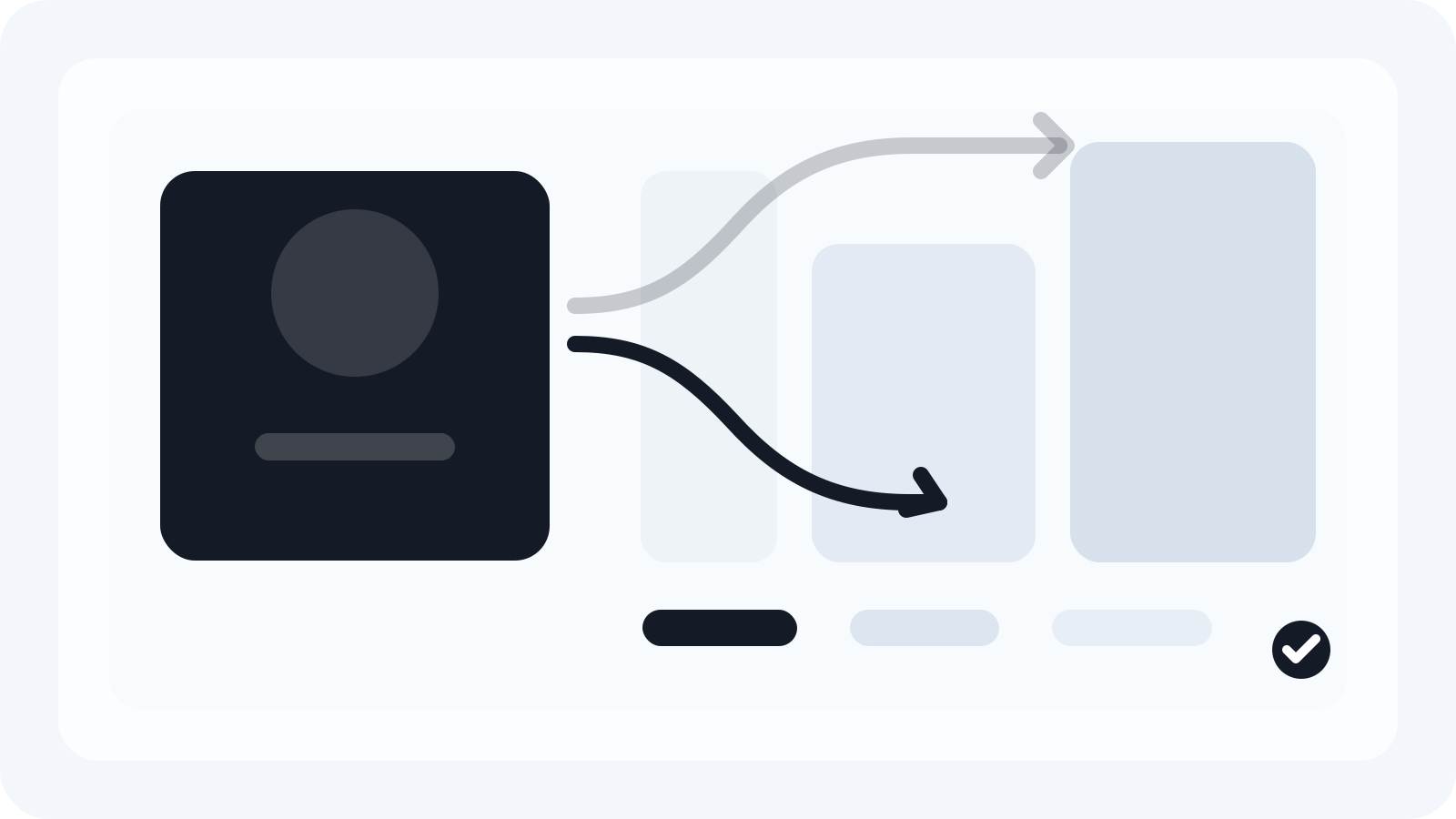
Many teams already compose a single, approved master, then spend hours replicating crops and exports. Smart Resize reduces the repetitive parts while keeping outputs as editable PSDs for later tweaks.
- Map the master once, then auto‑generate the landscape, square, and portrait canvases with consistent layer placement.
- Maintain editable outputs per size, so last‑minute legal or price changes are minutes, not rebuilds.
- Centralize your size list and output rules; it’s easier to keep the “image family” aligned over multiple campaigns.
If you want to evaluate it on an active job, review Enter sizes, Output settings, and Generate assets. When you’re ready, compare plans on the Smart Resize pricing page or grab the installer from the Smart Resize download.
Cropping strategy for auto‑enhancements and native placements
Responsive formats may place your image in cards, carousels, and feeds with variable overlays, gradients, and buttons. Auto‑generated videos can also pan/zoom across your stills.
- Safe area. Keep essential subject matter and headers in the central 60–70% of the canvas. This accommodates UI overlays, rounded masks, and subtle crops.
- Visual anchor. Use consistent anchor points (e.g., the brand mark or product centerline) across all ratios to preserve continuity.
- Text restraint. Favor fewer words in imagery and move detail into text assets (headlines/descriptions) that Google controls responsively.
- Logo clarity. Deliver a true logo set: square and 4:1 wide, high contrast against both light and dark backgrounds; export transparent PNG where allowed.
- Motion awareness. If you submit multiple images, expect that auto‑video can animate between them. Avoid near‑duplicates that create awkward flicker.
Practical export guidance for Google assets
- File type. JPEG for photographic images; PNG when transparency or sharp edges are critical (logos, UI elements, type‑heavy graphics).
- Compression. Target clarity over micro‑savings; avoid blockiness around type and logos. Start at JPEG quality ~80 and adjust by eye.
- Edge hygiene. Expand backgrounds a few pixels beyond the crop to prevent slivers after encoding.
- Naming. Use a consistent schema that encodes campaign, ratio, variant, and language, e.g., 24Q2_brand_perfmax_L-191x1_A_en-US.jpg.
- Manifest. Keep a simple CSV manifest with columns for asset role, ratio, variant, copy lines used, and approval status.
QA checklist before upload
- Ratios present: 1.91:1, 1:1, 4:5 images; square and wide logos.
- Safe area honored; no critical content within 5–8% of any edge.
- Type legible at smallest anticipated render.
- Colors within sRGB; no unintended profile conversions.
- File sizes and formats compliant; transparent PNG used for logos as needed.
- Visual parity across variants; brand elements stable between crops.
Example minimum pack for a campaign handoff
Provide these assets at working resolutions that downscale crisply:
- Images
- Landscape (1.91:1): 1200×628 px — primary and alternate.
- Square (1:1): 1200×1200 px — primary and alternate.
- Portrait (4:5): 960×1200 px — primary and alternate.
- Logos
- Square (1:1): 1200×1200 px, PNG with transparency.
- Wide (4:1): 512×128 px, PNG with transparency.
- Optional
- A no‑text variant in at least one ratio for responsive placements that favor cleaner imagery.
This is a pragmatic starting set. Your media team may request additional cuts; keep the PSD ready so you can generate them quickly.
Running this workflow with Smart Resize
If you’re adopting Smart Resize in production:
- Load the approved key visual into your master via Load key visuals.
- Enter your ratio‑accurate size list once in Enter sizes (e.g., 1200×628, 1200×1200, 960×1200, 1200×1200 logo, 512×128 logo).
- Map layer roles so headlines, CTAs, and logos land consistently across outputs.
- Use Output settings to select JPEG/PNG and naming rules, then Generate assets.
You still design the composition. Smart Resize just handles multiplication, keeps outputs editable as PSDs, and standardizes exports so trafficking is predictable.
Troubleshooting common issues
- Rejection for “logo quality” or “low contrast.” Re‑export logos at higher source resolution, increase contrast against the background, or deliver a reversed color version.
- Cropping clipped the CTA. Reduce typographic footprint or shift the CTA deeper inside the safe area; supply a no‑text image alternative.
- Type looks soft. Check for double scaling. Export at native pixel dimensions and avoid upscaling small masters.
- Color shift in previews. Ensure sRGB profile is embedded and avoid wide‑gamut working spaces for web exports.
- File too large. Increase JPEG compression modestly, flatten layers before export, or simplify subtle noise/gradients that compress poorly.
You can run this workflow manually or accelerate it with Smart Resize. If you need to spec it for an upcoming pitch, browse the Smart Resize quick start. When procurement is ready, see the Smart Resize pricing or go to the Smart Resize download to test on a live PSD.
Smart Resize
Need the workflow before the pitch?
Use the Smart Resize docs to review PSD setup, layer mapping, size entry, and export configuration.
FAQ
Do I still need fixed sizes for Google if I’m using responsive ads?
You don’t need every legacy banner size. Google’s responsive and Performance Max formats prioritize asset families by aspect ratio (landscape, square, portrait) plus square and wide logos. Provide multiple crops and variants so the system can assemble placements. Some campaigns, publishers, or native formats may still benefit from a few fixed sizes; confirm with your media team.
How much text can I place on images before Google crops or downranks them?
Google doesn’t enforce a strict image‑text percentage, but responsive placements, native formats, and auto‑generated videos can crop or scale aggressively. Keep essential text within a conservative safe area (about the central 60–70% of the canvas) and avoid type smaller than 14–16 pt at 1x export. Use variants with and without text for flexibility.
What’s the difference between square images and square logos in Google campaigns?
Square images (1:1) are creative assets that can contain lifestyle, product, or typographic ideas. Square logos (1:1) must be brand marks with clear space and high contrast. Many accounts also request a wide (4:1) logo. Deliver both logo shapes as separate assets in PNG with transparency where appropriate.
Why keep everything editable in PSDs if Google only needs flat files?
Because campaigns iterate. Legal lines change, pricing updates, and audience learnings trigger new variants. Editable PSDs shorten revision cycles, reduce rework risk, and keep QA trustworthy. If you use Smart Resize, each output remains an editable PSD with consistent mapping, so you can reopen and adjust without rebuilding layouts.
Sources and verification
Create embedded Smart Objects
https://helpx.adobe.com/photoshop/using/create-smart-objects.html
Google Ads specs: ad formats, sizes, and best practices
https://support.google.com/google-ads/answer/13676244?hl=en-EN
About image assets for Performance Max campaigns
https://support.google.com/google-ads/answer/14530211?hl=en
About advanced format options for responsive display ads
https://support.google.com/google-ads/answer/9848687?hl=en
Social Media Image Sizes in 2026: Guide for 9 Major Networks
https://buffer.com/library/social-media-image-sizes/