Smart Resize
Need to adapt key visuals without rebuilding them from scratch?
Smart Resize helps Photoshop teams turn one approved campaign system into more output files faster.
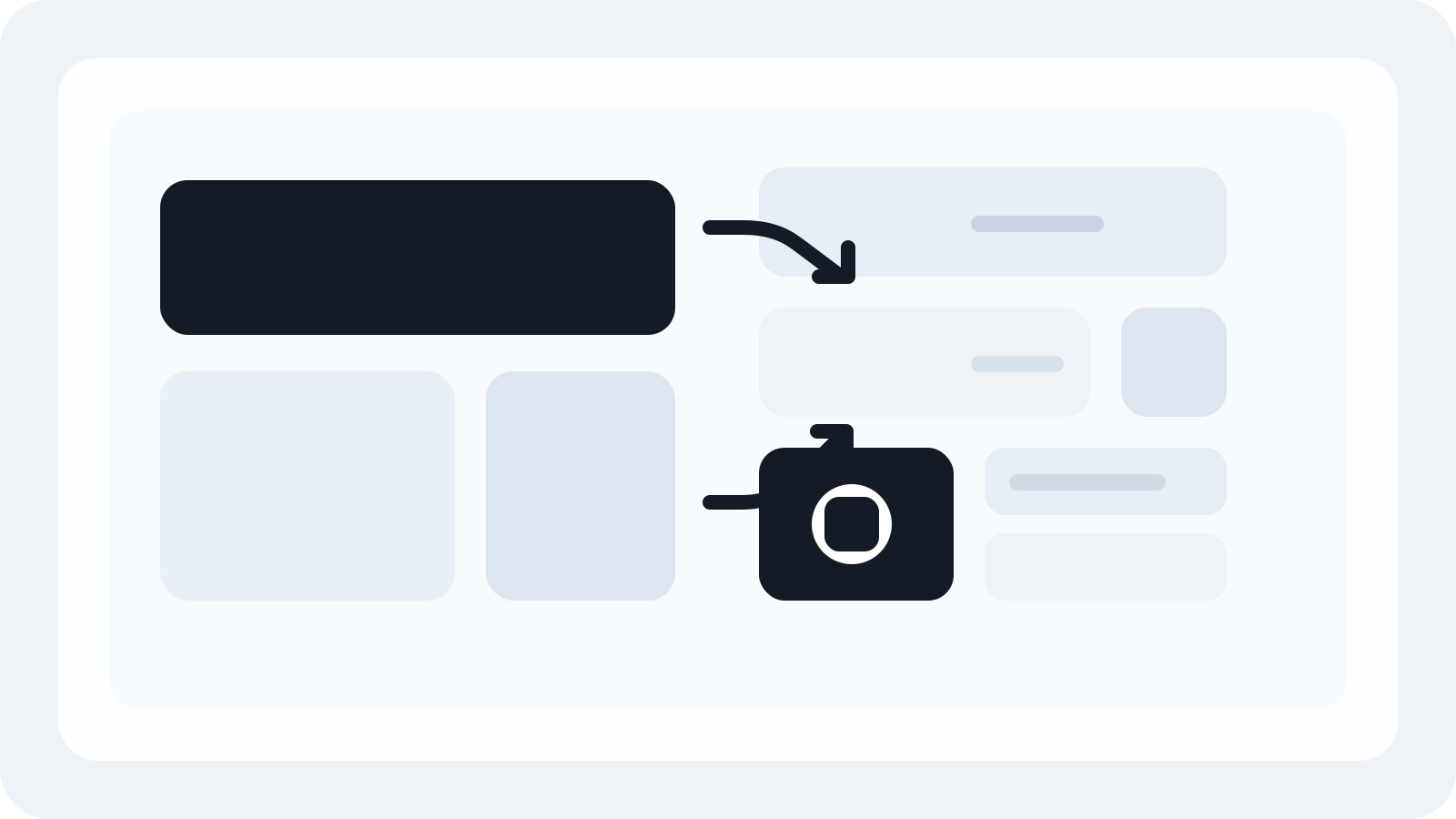
Adapting a key visual to different sizes is rarely a simple resize. The harder part is protecting the campaign hierarchy while the frame changes shape around it.
That is why many teams underestimate the production challenge. They think the job is about dimensions, but the real job is about preserving meaning across different compositions without turning one approved visual into a pile of disconnected PSDs.
Decide what must survive every format
Before any adaptation work starts, identify the parts of the layout that must stay recognizable everywhere:
- the hero image or product
- the primary message
- the CTA or offer
- the logo and brand signal
- the legal line when required
If those elements are not prioritized early, every format decision becomes subjective and slow.
Use orientation masters instead of endless duplicates
The strongest campaign workflows do not start with one master and twenty copies. They start with a small set of intentional orientations that represent the campaign well:
- horizontal
- square or portrait
- vertical when needed
That creates a cleaner source system. It also reduces the chance that different designers solve the same adaptation problem in incompatible ways.
Separate the design logic from the export logic
Most teams lose time because layout thinking and production labor are mixed together. The same designer has already established the visual hierarchy, but still has to spend hours dragging layers around across each new PSD.
Once the design logic is approved, the repetitive part should be treated as production work. That makes the process much easier to scale.
Plan for safe zones and extension space
A key visual that looks strong in one ratio can break quickly in another if there is no extension space around the subject or typography.
Good adaptation planning usually means:
- backgrounds that can extend
- isolated hero layers or smart objects
- text blocks that can move without breaking
- decorative elements that are allowed to disappear when the ratio gets tight
This is what makes the design system resilient before any automation enters the workflow.
Review the campaign as a behavior system
Instead of asking whether each single output looks good in isolation, ask whether the campaign behaves consistently across the major format families.
That means reviewing the visual system across a few core shapes first:
- wide
- square or portrait
- vertical
If the hierarchy fails in one of those, the issue is upstream. No amount of manual export work will make the whole campaign efficient later.
Use Smart Resize for the repetitive middle
Once the key visual system is stable, Smart Resize becomes useful because it takes over the repetitive adaptation work inside Photoshop.
That means teams can:
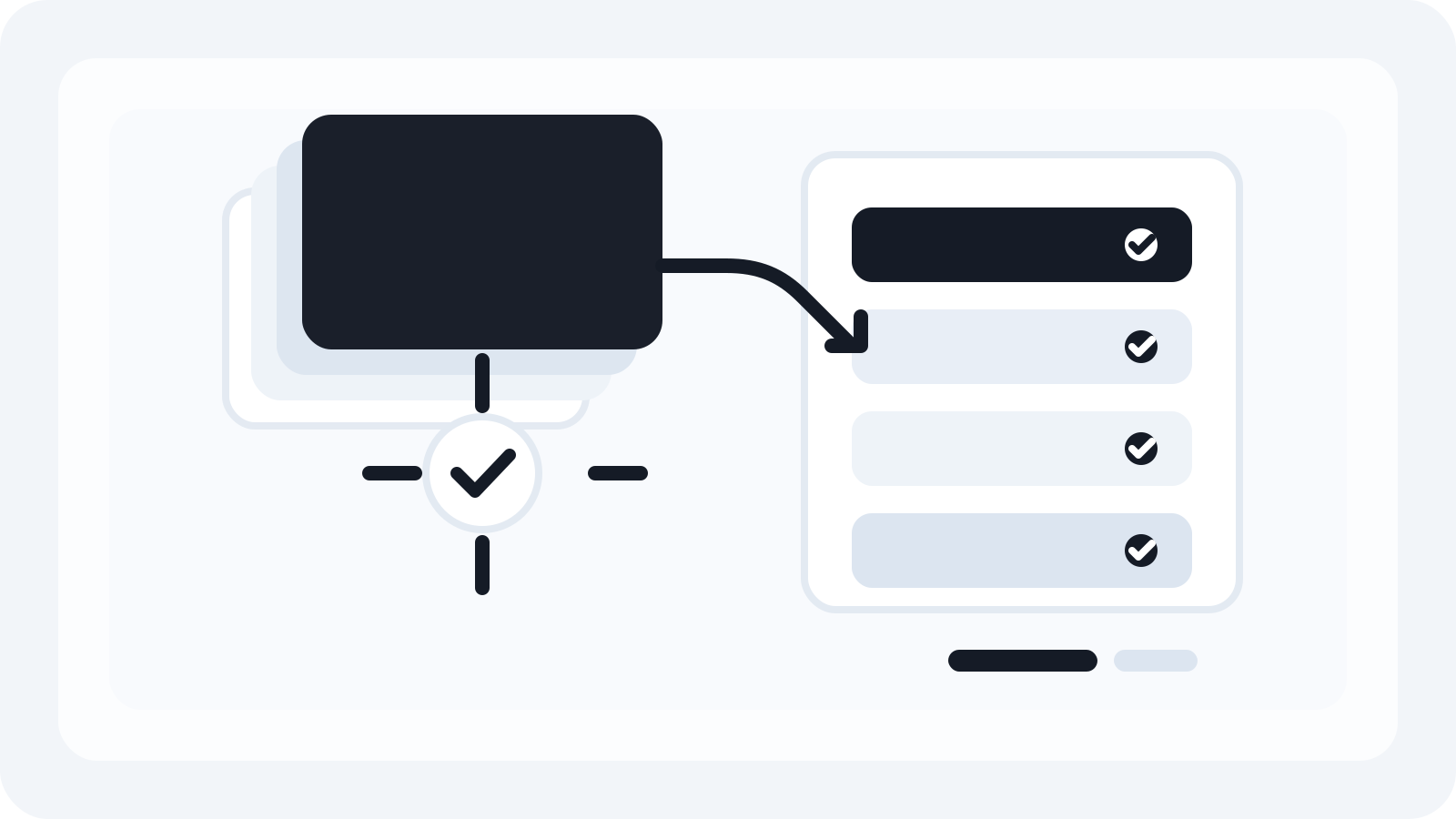
- load the approved masters
- confirm the layer map
- paste the target sizes
- generate the output batch
The PSD outputs remain editable, which matters because campaign files nearly always need one more adjustment after the first round.
Review the exceptions, not every file from zero
An effective adaptation workflow does not remove creative review. It changes where review happens.
Instead of rebuilding every file manually, the team can generate the batch and focus on the outputs that genuinely need human attention:
- the most extreme ratio changes
- the placements with tight safe zones
- the formats where the hero crop feels weakest
That is how key visual adaptation becomes manageable at scale.
The practical takeaway
Adapting key visuals to different sizes is a production discipline. The teams that do it well protect hierarchy early, keep a small set of clean masters, and automate the repetitive part of the workflow after approval.
That is the problem Smart Resize is built to solve. It helps Photoshop teams move one approved visual system into many campaign outputs faster without sacrificing the layered PSD structure they still need afterwards.
Smart Resize
Review the setup rules first
Start with the Smart Resize docs for clean masters and layer mapping inside Photoshop.
FAQ
What should stay consistent across every adapted format?
The key visual hierarchy should stay consistent: the hero asset, primary message, CTA, logo, and any legal or brand elements that define the campaign.
Why do some formats need more manual attention than others?
Some aspect-ratio shifts change the composition dramatically. The goal is not to remove design review, but to reserve it for the difficult formats instead of manually rebuilding every file.
How does Smart Resize help with key visual adaptation?
Smart Resize handles the repetitive generation work after the key visual system is approved, while preserving layered PSD outputs for final refinements.