Smart Resize
Need to speed up banner production in Photoshop?
Smart Resize helps campaign teams generate more sizes from the same approved creative system.
Creating multiple banner sizes fast is not just about working faster inside Photoshop. It is about removing the repeated decisions that make banner production expensive in the first place.
The teams that move quickly are not the ones clicking faster. They are the ones working from cleaner source files, better format groupings, and a production workflow that turns a banner set into one system instead of twenty separate compositions.
Clean source files matter more than speed tricks
Banner production gets slower when the master PSD is messy:
- layers are named inconsistently
- text groups are mixed with decorative elements
- backgrounds cannot extend cleanly
- hero assets are hard to isolate
That kind of source file creates friction before a single size is generated. A clean source system creates speed before the workflow even starts.
Group banner sizes by composition family
Not every banner size needs its own unique solution. The easiest way to speed up production is to group sizes by the layout behavior they share:
- wide banners
- rectangle banners
- vertical banners
That means the team can solve the visual system once for a family instead of solving every file from zero.
Define what can flex and what cannot
Fast banner production depends on clear rules:
- what must stay visible in every size
- what can crop or drop out
- how text can reflow
- where the CTA can move
- how legal lines are handled
If those rules only live inside one designer's head, the workflow will never scale.
Manual banner resizing is slow because it repeats judgment
A manual workflow usually looks like this:
- duplicate the PSD
- change the canvas
- move the subject
- move the headline
- re-balance the background
- export the file
- do it again for the next size
None of those steps are hard once. They become slow because they are repeated dozens of times.
Use Smart Resize to generate the batch
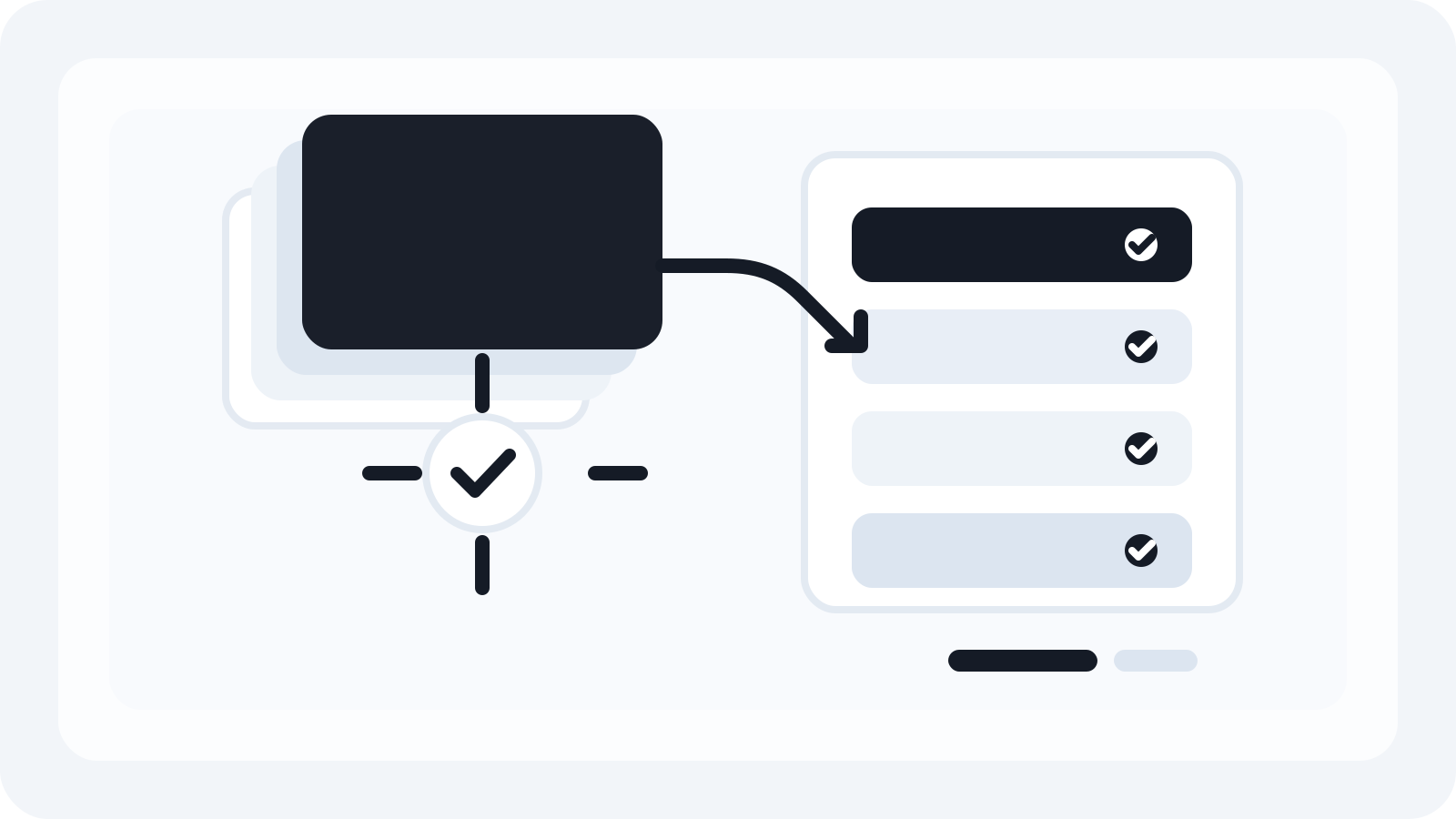
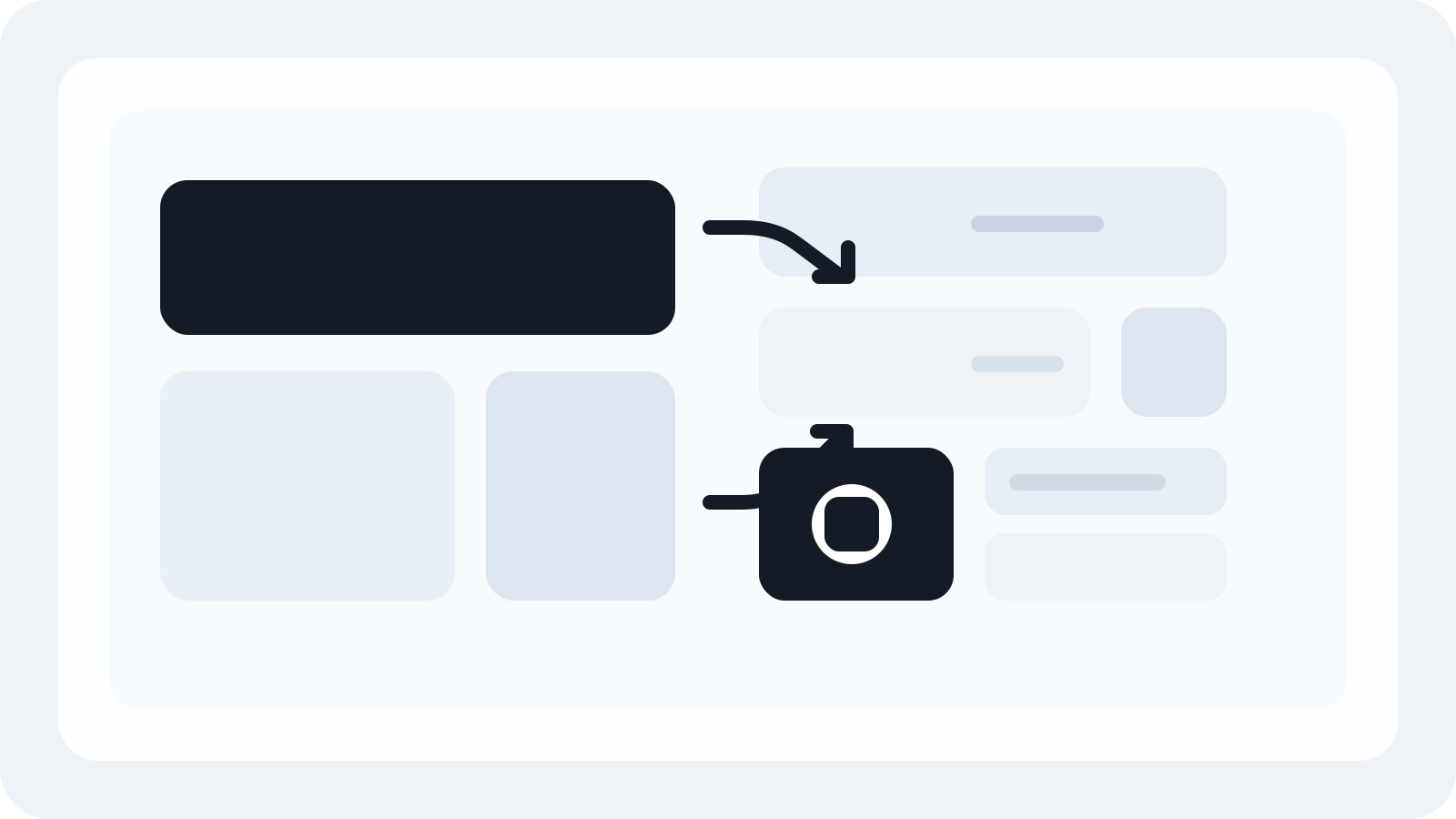
Once the source files are prepared, Smart Resize helps Photoshop teams generate the banner batch from mapped master layouts instead of rebuilding each file manually.
That means the team can:
- paste the target size list
- generate the outputs in one pass
- review the difficult banners afterwards
- keep layered PSDs ready for revisions
This is especially useful when the banner set is only one part of a wider campaign delivery package.
Keep QA focused on the risky sizes
The more standardized the production workflow becomes, the smaller the QA burden gets. Instead of reopening everything by default, the team can focus review on the sizes most likely to break:
- narrow units with limited copy space
- unusual aspect ratios
- versions where the hero crop feels tight
That is how banner production gets faster without becoming sloppy.
The practical takeaway
If you need to create multiple banner sizes fast, stop treating the task like a series of isolated PSDs. Build a source system, group the formats by composition behavior, and use a generation workflow that reduces repeated production work.
That is exactly where Smart Resize helps. It turns a banner-size list into a faster Photoshop workflow while keeping the source files editable for the changes that always arrive later.
Smart Resize
See the production setup
The Smart Resize docs show how to prepare master files for multi-size generation.
FAQ
What is the fastest way to make multiple banner sizes?
The fastest workflow starts from clean master files and a grouped size strategy, then uses a batch generation process instead of manually composing every banner as a separate PSD.
Why do banner projects slow down so quickly?
Because each additional size multiplies the number of layout decisions, QA checks, file versions, and revision rounds unless the workflow is standardized.
How does Smart Resize help with banner production?
Smart Resize helps Photoshop teams generate multiple banner sizes in one workflow while keeping PSD outputs editable for later changes.