Smart Resize
Turn one Instagram master into multiple editable production files
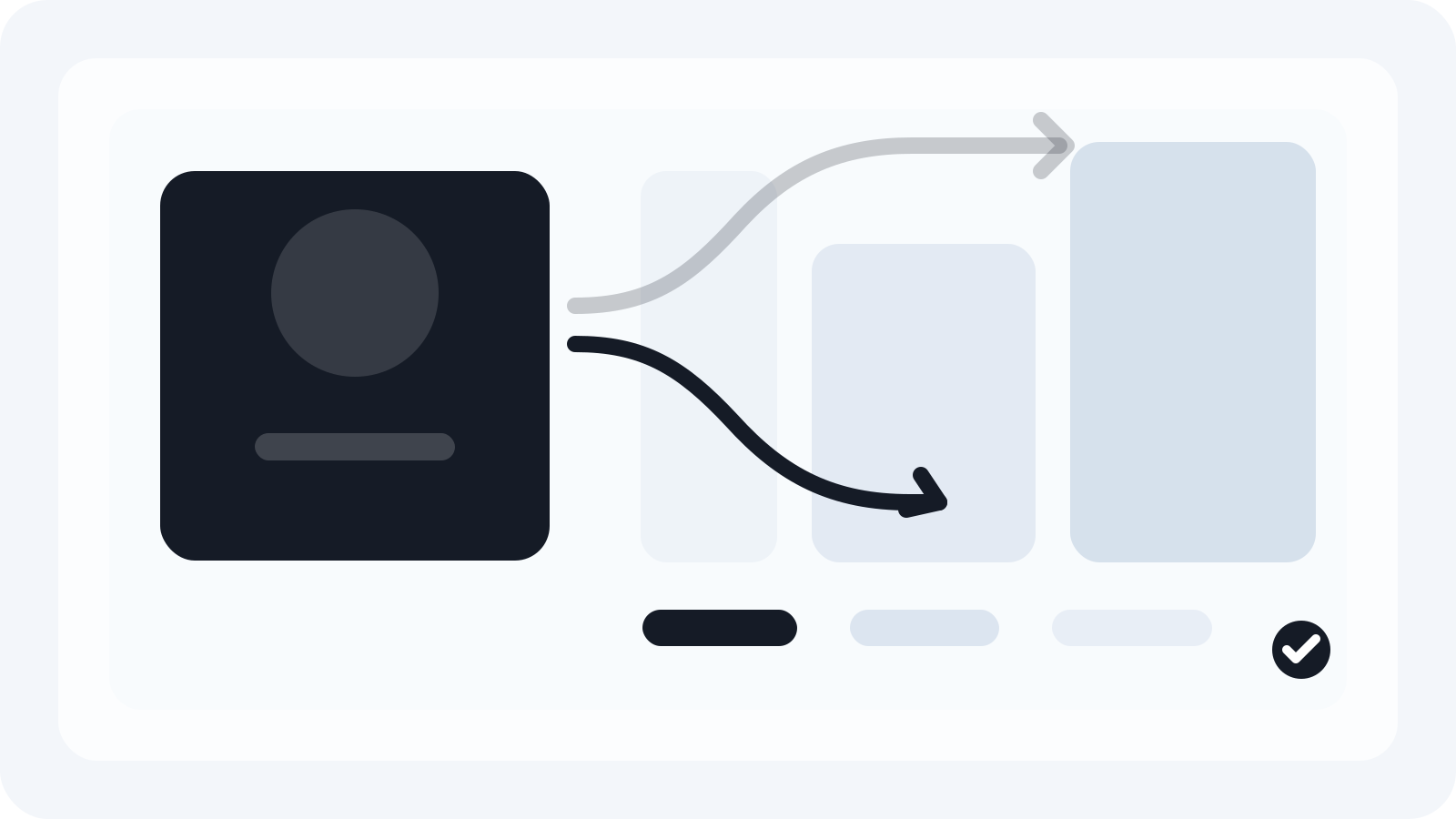
Smart Resize helps Photoshop teams adapt approved key visuals into more campaign sizes without rebuilding each format by hand.
Facebook and Instagram production gets expensive when a team treats every placement like a new design brief. The visual idea may already be approved, but the real work starts when the campaign has to live as a square feed asset, a portrait feed variation, and a full-screen story or reel version without introducing layout drift, copy issues, or last-minute review rounds.
For most agencies and in-house creative teams, the practical goal is not to memorize every possible Meta variation. It is to build a repeatable Photoshop production system that can absorb new sizes with minimal manual rework. That is the difference between a campaign that scales cleanly and a campaign that turns one key visual into a dozen fragile PSDs.
Why Facebook and Instagram format work becomes a production bottleneck
Meta placements look simple from the outside because the output files are visually straightforward. Inside a campaign workflow, it is more complicated:
- copy length changes when the canvas gets narrower
- logos and legal lines lose their hierarchy in tall formats
- background images that look balanced in square often feel empty in vertical
- review feedback arrives placement by placement instead of as one system decision
That is why Facebook and Instagram adaptation work often lands on senior production designers, not just junior resizers. The work is less about exporting and more about preserving intent while the frame changes.
If your team still resizes manually, the cost shows up in hidden places: duplicated PSDs, inconsistent crop decisions, QA drift between variants, and slower turnaround when campaign managers request one more size at the end of the day.
The sourced specs versus the production set you actually need
Here is the important distinction. Official platform guidance tells you what the platform can accept. A production workflow needs a smaller working set that your team can build and review consistently.
According to Instagram's photo-resolution guidance, photos are preserved up to 1080 pixels wide and the platform supports aspect ratios between 1.91:1 and 3:4. Meta's placement guidance adds the full-screen vertical reality that creative teams already deal with in practice across both Facebook and Instagram.
That leads to a useful working model:
| Type | Practical production size | Why teams build it |
|---|---|---|
| Landscape support asset | 1080 x 566 | Useful when a wider crop must stay intact or when a campaign borrows web-key-visual proportions. |
| Square feed asset | 1080 x 1080 | Stable for many feed uses and a good control version for approvals. |
| Portrait feed asset | 1080 x 1350 | Gives more vertical space while staying within Instagram's supported still-image range. |
| Story / reel vertical asset | 1080 x 1920 | The practical full-screen production format when the campaign also needs immersive vertical placements. |
The first row is mainly a compatibility reference. In day-to-day production, most teams should center the review process on square, portrait, and full-screen vertical. That is usually enough to cover the majority of Instagram adaptation needs without exploding the number of masters.
What the manual Photoshop workflow usually looks like
In a manual process, a designer duplicates the approved PSD, changes the canvas, expands the background, moves the product, nudges the headline, adjusts the CTA, exports a JPG, then repeats the same judgment calls again for the next placement.
The problem is not that the steps are impossible. The problem is that they are not governed by a system. Once each variant becomes a separate PSD, you lose:
- shared layer intent
- predictable crop logic
- a reliable text hierarchy
- confidence that the final approved versions are still aligned
That is also why teams struggle to hand adaptation work off. A manual process lives in the head of the person doing it.
A better Photoshop workflow for Facebook and Instagram campaigns
A stronger workflow starts before resizing.
1. Build a master with adaptation in mind
Create the hero PSD so that it can tolerate reframing. That means:
- keep the subject on isolated layers or smart objects
- separate headline, subhead, CTA, logo, and legal into distinct groups
- keep textured or photographic backgrounds extensible
- name layers by role, not by visual guesswork
If you want a reference point for production setup, the Smart Resize quick-start flow shows the same principle from the plugin side: clean masters and predictable layer roles reduce downstream adjustment time.
2. Define safe zones before anyone duplicates files
For Meta work, the review problem is usually text and logo safety, not raw pixel count. Mark a central "must survive" zone for brand assets and primary copy. Anything decorative can flex outward when the canvas changes.
This single step prevents the most common failure mode: the portrait or story version technically fits, but the important information feels too close to the edges.
3. Review the visual system, not individual exports
Instead of approving one square PSD and then reacting to each new version later, review the visual behavior across three shapes at once:
- square
- portrait
- full-screen vertical
That turns feedback into reusable rules. For example: "product can crop slightly in vertical, but headline must stay above the lower third." Once that rule is decided, the rest of the production set moves faster.
The file structure that keeps Facebook and Instagram production editable
A production-ready Instagram package should keep editability intact for the next round of changes. A simple structure is usually enough:
- one approved key-visual master PSD
- one adaptation folder for output variants
- one export folder for JPG and PNG deliverables
- one naming convention for status and orientation
Example:
campaign-name/
  01-master/
    kv-master_v05.psd
  02-production/
    instagram-square_v02.psd
    instagram-portrait_v02.psd
    instagram-story_v02.psd
  03-exports/
    instagram-square_v02.jpg
    instagram-portrait_v02.jpg
    instagram-story_v02.jpg
This is boring on purpose. Production speed usually comes from predictable structure, not clever structure.
Where Smart Resize fits naturally
Smart Resize is most useful after the campaign concept is approved and the team has agreed on the adaptation rules. That is when repetitive Photoshop production starts to dominate the schedule.
Instead of rebuilding each version manually, Smart Resize helps you:
- start from one approved master
- generate multiple output sizes faster
- keep layered PSD outputs available for editing
- export JPG and PNG alongside the editable production files
That matters when Instagram is only one part of the delivery list. A real campaign rarely stops at three placements. The same asset set often has to feed Meta, Google, landing pages, and internal review decks. If your production team is already doing multi-size adaptation work, Smart Resize pricing is aimed at that exact bottleneck.
A practical checklist before you ship Meta social assets
Before exporting the final set, check these points:
- the square, portrait, and vertical variants all preserve the same visual priority
- CTA placement still makes sense when the crop gets taller
- legal text is readable without becoming visually dominant
- the product or hero image is not trapped by the edges in portrait formats
- output names clearly identify placement shape and version
- editable PSDs are saved alongside final exports
If this checklist fails on every campaign, the issue is usually upstream. Your team is resizing images, but it is not designing a repeatable adaptation system.
The strategic takeaway
Facebook and Instagram ad production are not hard because the platforms have too many sizes. They are hard because teams keep solving the same framing problem manually.
When you move from one-off exports to a structured Photoshop workflow, you get faster approvals, fewer file forks, and cleaner multi-format delivery. That is the condition Smart Resize is built for: one approved visual, many required formats, and no appetite for rebuilding the campaign by hand every time a new canvas shows up.
Smart Resize
Need the product workflow first?
Start with the Smart Resize quick-start docs to see how editable PSD, JPG, and PNG outputs fit into a production pipeline.
FAQ
What Instagram sizes should a Photoshop production team build first?
For most campaigns, start with square, portrait, and full-screen vertical versions. That gives you the three production shapes most teams repeatedly need for feeds, stories, and reels.
Should I build separate PSDs for every Instagram placement?
Usually no. A better approach is to maintain one master visual system, then create controlled output variants with shared layer logic, safe zones, and edit rules.
Where does Smart Resize help in this workflow?
Smart Resize is strongest after the core visual system is approved. It helps you turn one key visual into multiple editable production files faster, reducing manual banner adaptation work in Photoshop.
Sources and verification
Instagram photo resolution help
Official Instagram guidance says photos are shared up to 1080px wide and support aspect ratios between 1.91:1 and 3:4.
https://www.facebook.com/help/1631821640426723/
Meta photo ad format overview
Meta overview for still-image ads across Facebook and Instagram placements.
https://www.facebook.com/business/ads/photo-ad-format
Meta Reels ads overview
Meta overview covering Reels placements and creative considerations for full-screen vertical delivery.
https://www.facebook.com/business/ads/facebook-instagram-reels-ads